
Let’s jump right into it!
Here’s the architecture diagram from the last article. I’ll walk through what each part means, and how it’ll correspond to stuff we have to set up. (Click here to explore the Figma file.)
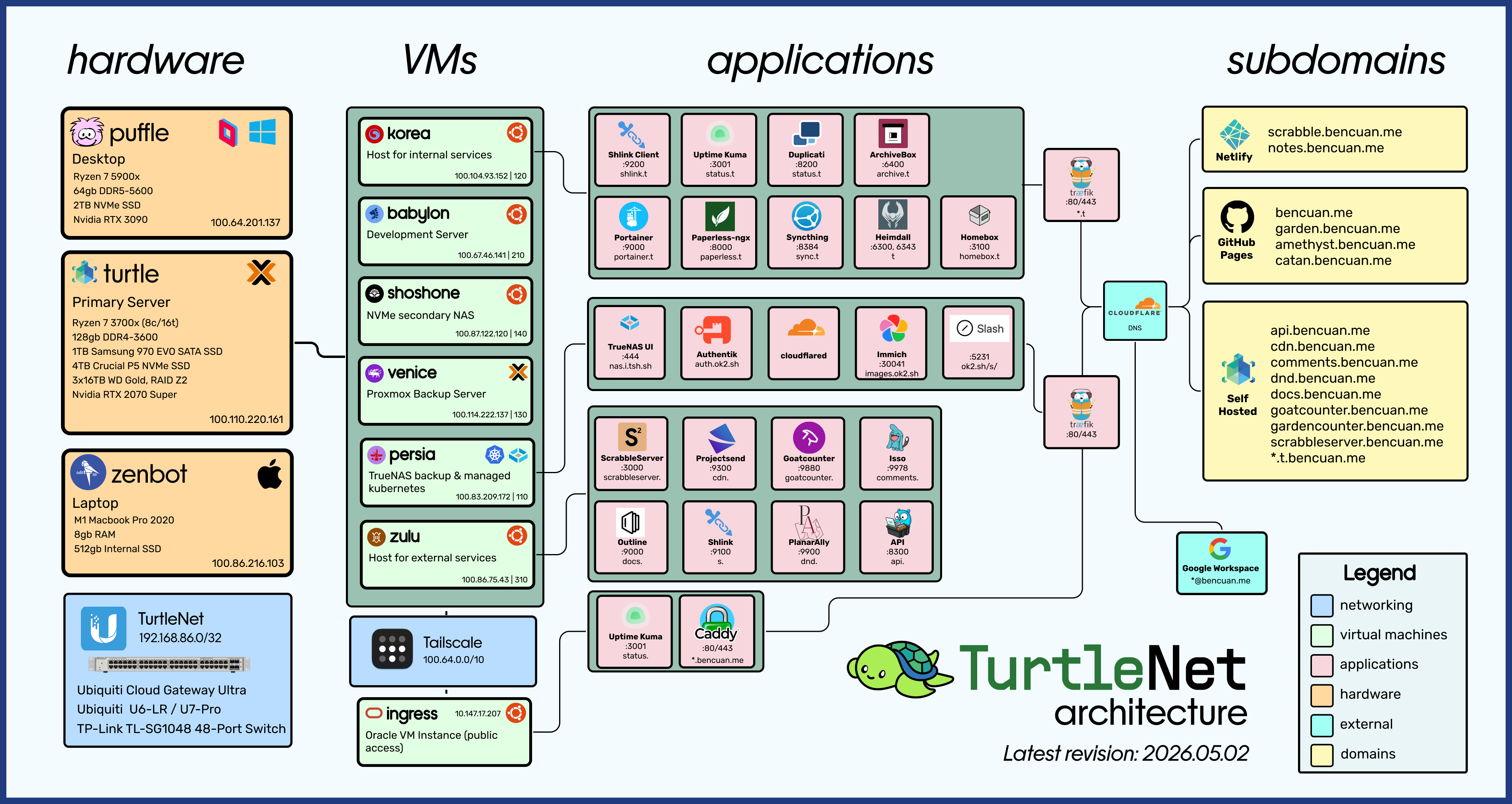
This chapter provides a high-level overview of the components in my setup, such that someone already familiar with how and why we need each part can see which solutions I chose.
If you’re not sure what most of these things are, keep reading on! I’ll break down each step in future parts.
A Summary of the Summary
Here’s the 30 second tl;dr for all the busy people out there:
A homelab refers to a server whose hardware is fully controlled by the person hosting it, and lives in a non-commercial environment like a home or school.
Using server hardware (which is basically just another computer), we can run software like Proxmox to manage virtual machines (VMs), which are full operating systems run within the server.
VM’s allow us to host a variety of services using the same hardware, even if they have different requirements.
To allow my VM’s to talk to each other (and to host private services that only I and trusted users can connect to), I use Tailscale, which is a software-defined networking solution that simulates a network switch online.
Then, to allow others to access my public services, I use a reverse proxy to redirect all requests to their internal locations without exposing where they really are. I then create DNS records to map friendly domain names (like garden.bencuan.me) to that public IP address.
The Hardware
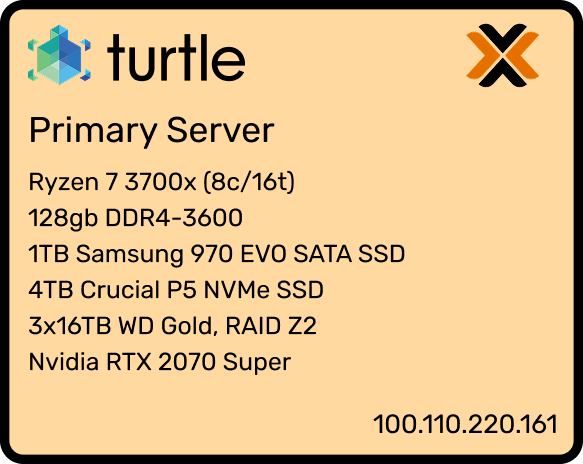
Here’s the physical computer that most services run on. If you’re familiar with gaming PC’s you may have noticed that it’s just a modern mid-range consumer desktop.
Interested in building your own computer for the specific purpose of homelabbing? Jump to Part 1.5 for a guide explaining why I chose those particular parts.
Why did I use consumer parts?
It’s common for established homelabbers to build a full rack-mount setup using enterprise hardware, since that’s the kind of stuff that’s designed to be running as a server.
However, for newer homelabbers and those who don’t need as much performance, I believe that using consumer hardware is generally a better choice for the following reasons:
- Price and availability: Unless you’re good at tracking down when datacenters are throwing out their old hardware, consumer parts are way easier to obtain. You can buy consumer parts for a reasonable price pretty much anywhere (Amazon, Best Buy, Newegg, etc). My setup cost slightly over $1000, which is about what you’d spend on a desktop anyways.
- Noise: Consumer hardware is way quieter, which is a huge plus if you’re running it in your house and don’t want to annoy everyone in a 500-foot radius of your server.
- Electricity usage: Unless you’re running some crazy setup, consumer hardware shouldn’t bring up your electricity bill by that much (after all, you’re just running a second computer in the house). My particular setup runs at 80W for most of the time (equivalent to a handful of bright LED lightbulbs). On the other hand, rack setups can easily draw hundreds to thousands of watts, since they’re optimized for performance rather than electricity usage.
Alternatives
As I’ve mentioned a couple times previously, my setup of a purpose-built consumer PC is only one possible way to start a homelab! Here are a few others, and some notes about them:
- Using an old desktop/laptop or Raspberry Pi: This is the most economical choice, and gives you more than enough power to get started. If you’re only running simple web servers or a handful of Docker containers, this might be all you need. However, if you expect to outgrow it soon, it might be better to just build one so you don’t have to migrate your services over.
- Using a cloud provider: If you just want to get the hang of configuring server software or run a simple service purely for its utility, homelabbing may not be for you just yet! You can purchase a VM from a provider like DigitalOcean, AWS EC2, Oracle Cloud, or Linode, which will serve the same purpose of a self-hosted VM but without having control over the hardware that runs it. Typically, these VM’s are billed monthly, but for low usages many providers offer a free tier.
- Using enterprise hardware: If you have a serious need for powerful hardware or want to take the hobby to the next level, building your own rack is the ultimate homelab setup. If you’re curious, you can search YouTube for “homelab rack” to get a variety of examples of all shapes and sizes.
Networking
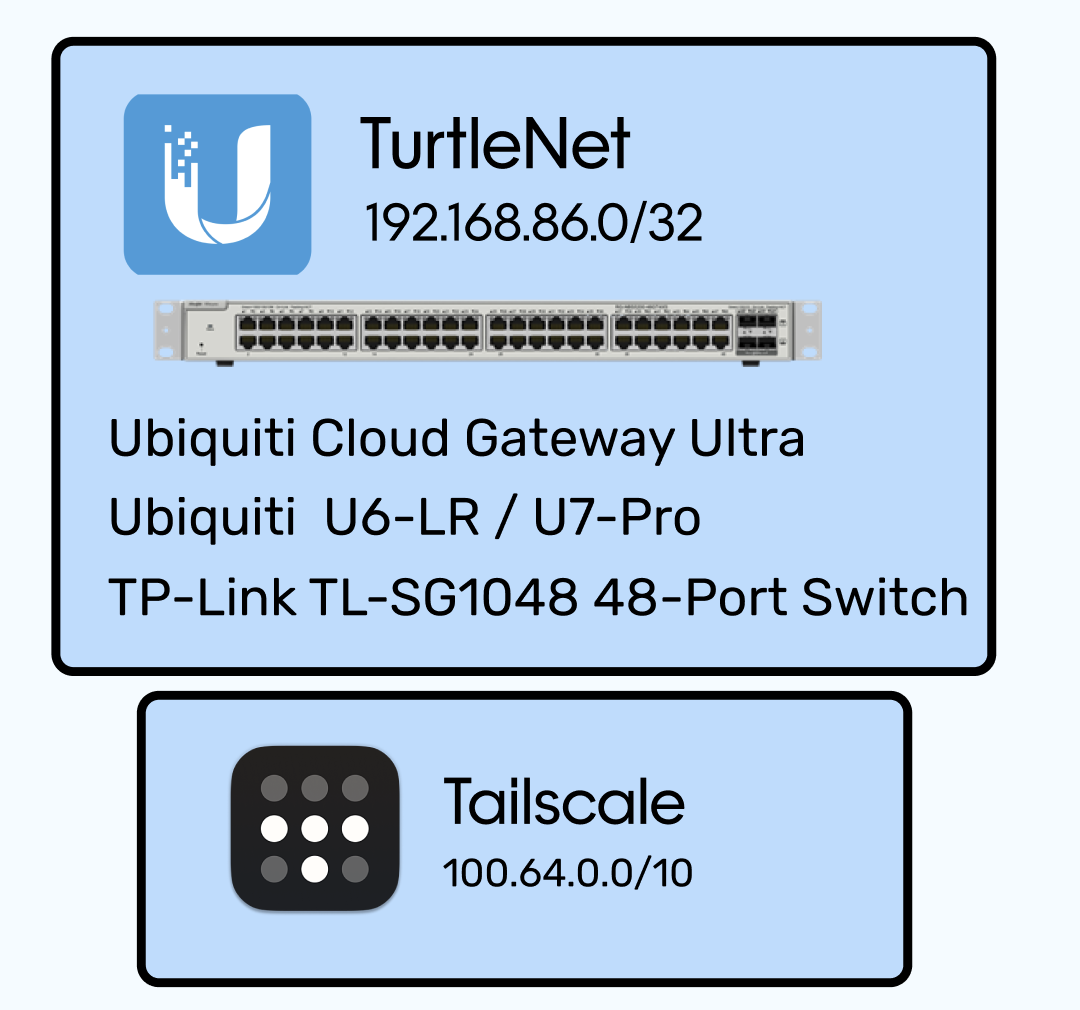
While wireless internet connections like WiFi work well for personal computers, they’re often too flaky and high-latency for server workloads. It’s much better to connect them to the network via physical Ethernet cables.
Given how many (virtual) machines I’m working with throughout TurtleNet, I wouldn’t fault you for imaginging some mess of cable spaghetti taking up all my floor space, like the below (real!) picture:
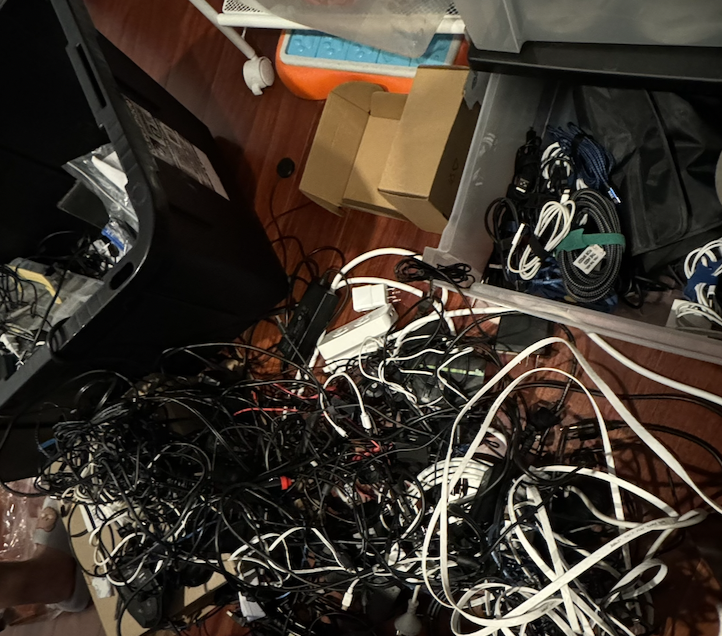
Luckily, by combining a minimal amount of physical networking (cables, switches, access points, etc.) with a software defined networking (SDN) solution, we can manage connections between machines without needing to link all of them physically!
The particular solution I went with was Tailscale, which assigns IP addresses to every machine connected to the network that can only be resolved by machines also connected to the network. (Don’t worry about the fact that my diagram is full of IP addresses- they’re all completely inaccessible to the public!)
Since I still have public services, I need some way to allow access in without having every stranger connect to my Tailscale network. So, I have one (free) Oracle Cloud VM that’s assigned a public IPv4 address while connected to Tailscale. Its only job is to run a reverse proxy which allows public access to only the particular resources I want to expose- more on that later.
Another software-based alternative to Tailscale is to run a dedicated VPN, such as OpenVPN or Wireguard. From a security standpoint all of these solutions are relatively similar, but running a VPN requires forwarding a port, and you’ll be unable to connect to the network if the host machine is down.
Virtual Machines
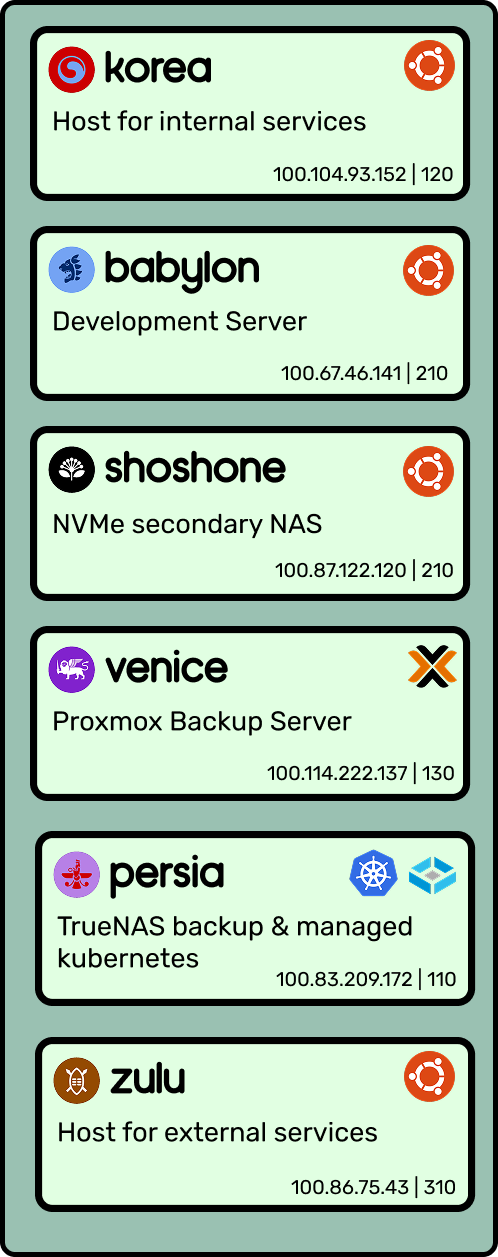
Besides the Oracle Cloud ingress, I currently host six VM’s on my main server, using Proxmox as a hypervisor:
- Korea hosts all of my internal services (which are only accessible to machines within my Tailscale network).
- Babylon is my development server, where I write most of my code and can quickly spin up live web servers if needed.
- Persia is my TrueNAS instance, which manages the hard drives which are passed into it. It also hosts a managed Kubernetes instance with applications like Immich that take advantage of the additional capacity. All of the other VM’s and physical machines in the network can access its pool like any other network drive (using NFS, Windows SMB, etc).
- Venice is where I host the Proxmox Backup Server. This server runs periodic snapshots of the other VMs and backs it up to the NAS storage.
- Shoshone is a ‘fast’ NVMe storage pool. It’s only a single 4TB drive, but it’s enough to act as additional scratch storage I can mount to VM’s (since I’ve outgrown the main 1TB boot drive).
- Zulu hosts all of my external services, which are publicly accessible via some subdomain of bencuan.me.
All of the VM’s above run Ubuntu 22.04. Others may have differing opinions about what OS to run; there’s no singular correct distro choice, as long as you choose one that’s reliable and familiar to you.
Applications
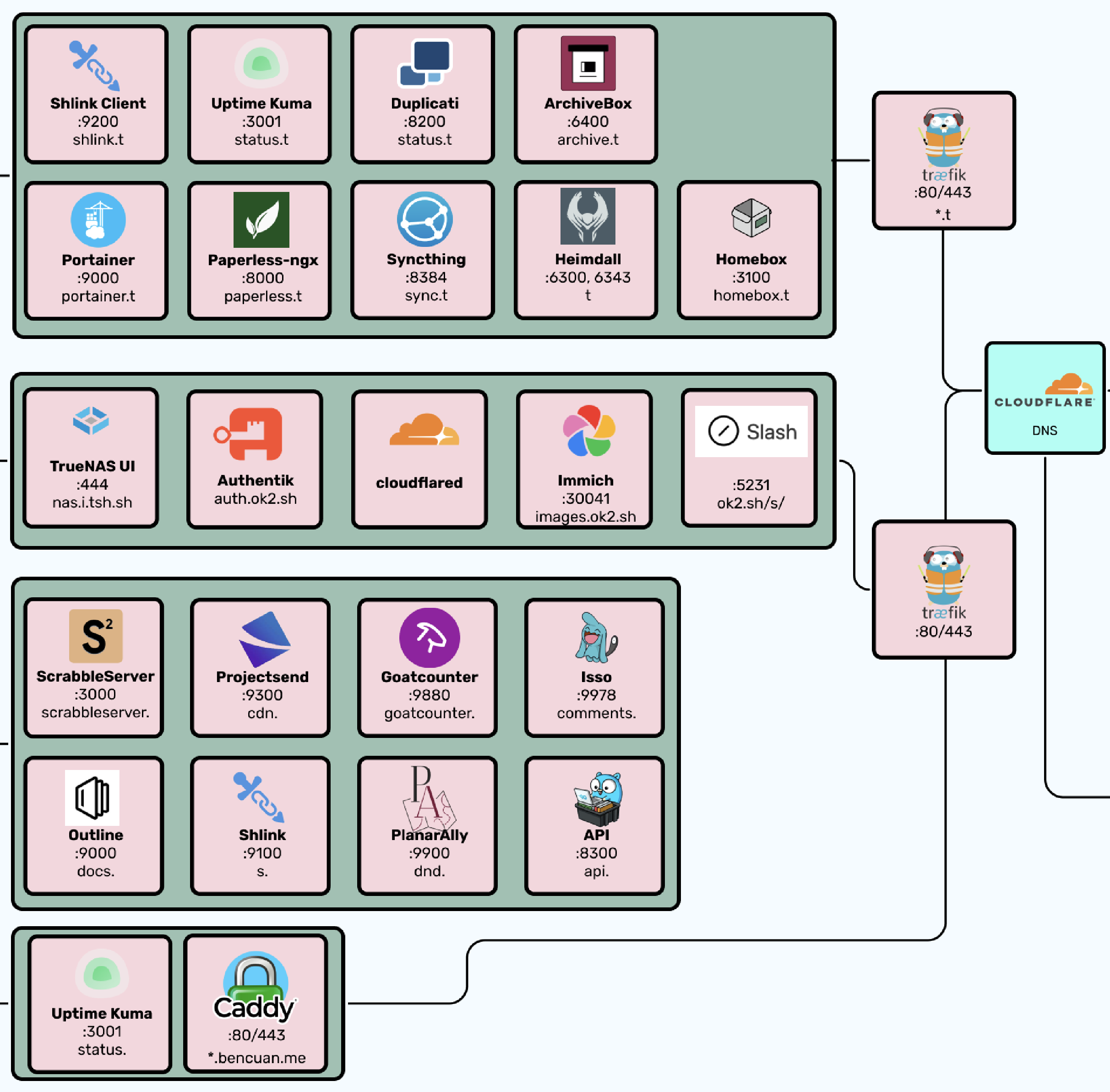
Now for the fun part! Here’s all the stuff that actually lives on my setup. Future parts will go into far more detail about how you can set these things up for yourself. There’s plenty more you can do with your own that I don’t, but hopefully this gives you a taste of the power of homelabbing:
- Reverse proxies: Caddy and Traefik. I use Caddy to reverse proxy external services, and Traefik to reverse proxy internal services. (Reverse proxying is basically mapping domains to local IP’s and ports— again, more on what this means exactly in a future part.) The reason why I have two is because I can point the wildcard domain
*.t.bencuan.meto my internal server (where Traefik is), and point all my public subdomains to the public IP of my Oracle VM (where Caddy is), making it impossible for general users to have any access to internal services. - Docker: I use docker-compose and Portainer to manage Docker, which is how I containerize and persist services such that multiple services can be easily run within the same VM.
- Backup: Duplicati and Syncthing allow duplication of my most important data onto other devices like my laptop and a friend’s server, so it can be restored in case my server blows up.
- Monitoring: Uptime Kuma provides a nice-looking status page to let users (and myself) know if something isn’t working.
- Documentation: Focalboard and Outline provide some platforms to host private documentation.
- Analytics: GoatCounter is a simple service that counts the number of visitors to my various public websites. Self hosting allows me to fully own the data I collect, and ensure that I’m respecting the privacy of users while still gaining helpful insights about what people are looking at.
- API: I have a custom API written in Go, which allows me to host custom endpoints to serve things to my various websites when needed. I use this extensively throughout my Garden to serve fun one-off utilities like my Spotify ‘currently playing’ viewer, current weather, or number of visitors.
- Guestbook: I host an instance of Isso to power the comments sections on my Garden and blog pages.
- Shorturls: Shlink is a self-hosted version of Tinyurl that allows me to create aliases starting in
s.bencuan.me- this is pretty helpful for sharing links. - Content delivery: Projectsend provides a way for me to host and share files with others. I mainly use this as an internal content delivery network to serve larger files with services that need to request them programmatically.
- Archival: Paperless allows me to archive scans of physical documents, and ArchiveBox is like a self-hosted Internet Archive that allows me to save webpages locally in case they go down in the future. I also use HomeBox to organize my personal inventory of physical objects.
- Dashboard: Heimdall provides me with a cool new tab page to hold links to all of the above services and some frequently used external services.
Subdomains
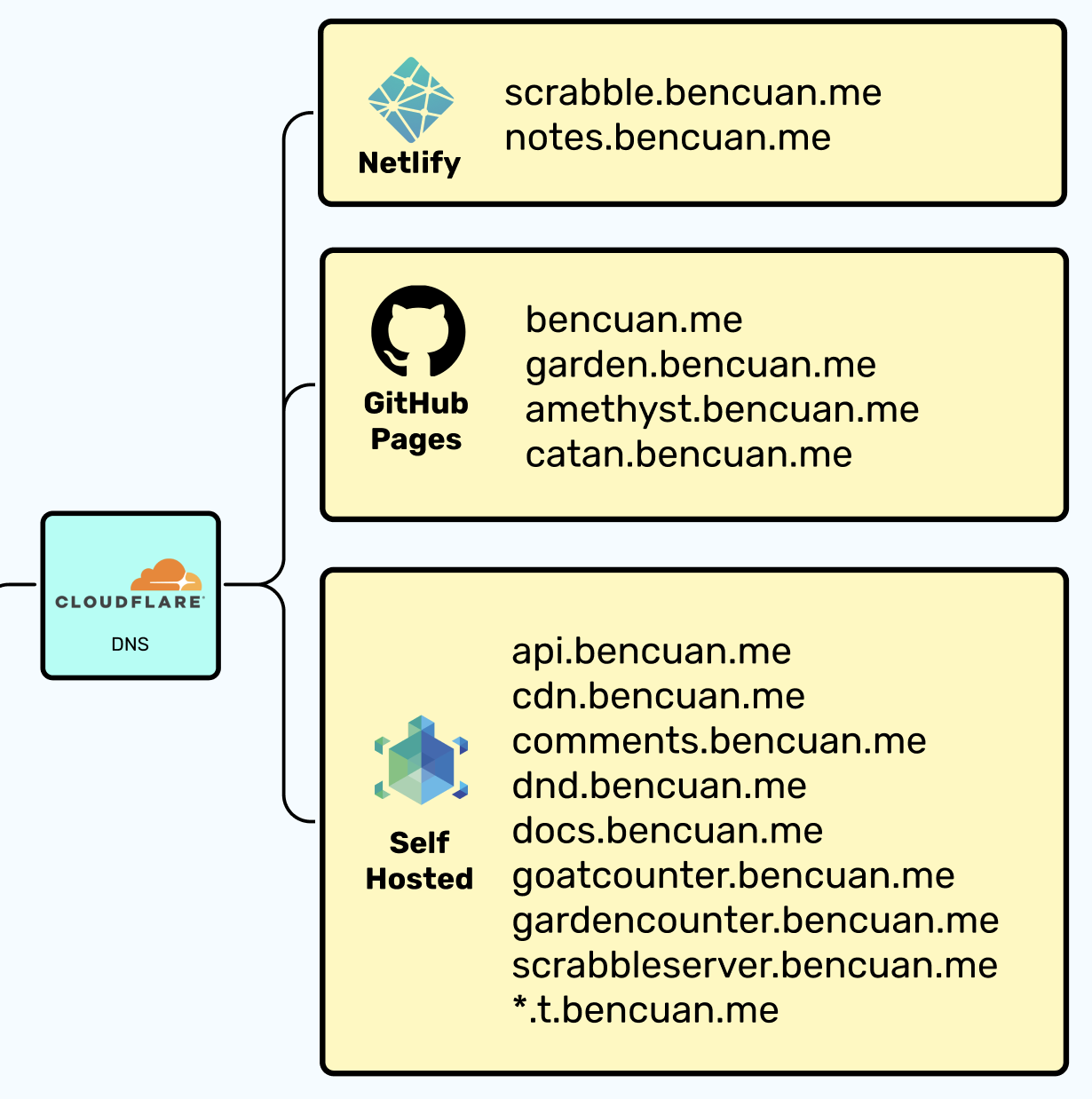
After hosting them, I need a way for users to easily access my external services. I happen to use Cloudflare as a DNS provider, but it really doesn’t matter which one you use.
For all of the domains listed in the “Self Hosted” box, I have an A record mapping the domain name to my ingress server’s public IP address. The Caddy instance hosted there then routes users to the desired resource.
My static sites are mostly built and hosted via GitHub Pages (through custom GitHub Actions workflows). If you’re really into self-hosting everything, you could consider a self-hosted Git and CI/CD solution (like GitLab) for static site hosting.