go back
v1 / v2
TurtleNet turtle

TurtleNet

v2 • may 2026

single page edition • by ben cuan

Welcome to TurtleNet!

Hello!

Over the past few years, I’ve been building up my personal server infrastructure. I wanted to share my experiences here in the hopes of filling in one of the biggest gaps in the traditional computer science curriculum: how to host and share the cool things we’ve created, and what “production deployment” really means behind the scenes.

I believe that running a server of some sort - whether it be a free cloud instance, a Raspberry Pi, or a system serving thousands of students - should be something all CS students (really anyone curious about computers) try out at some point in their learning journey.

In this series, I want to not only show you an example of how a homelab setup could look like, but also why I decided on the architecture I did so that you can make your own decisions about which parts to keep or change. This is not a step-by-step guide (there are lots of YouTube tutorials and blogs that help you achieve whatever you need to, some of which I’ll link below)- I would rather help you build the intuition you need to debug, solve problems, and make decisions about your own setup.

Some prerequisites and assumptions

Since this resource is intended for those with little to no experience with self-hosting, I won’t assume prior exposure to core concepts such as:

  • Servers and hypervisors
  • Virtual machines
  • Domains, internet networking (HTTPS/TLS)
  • (Reverse) proxies
  • Docker and containerization

However, if I had to explain absolutely everything, we’d be here for a very long time. So I’ll have to make some assumptions about what you know, and where to go if these cassumptions do not hold.

  1. You’ve used the terminal before, and recognize basic Unix commands like cd, ls, cat, ssh, and man. You’re also able to make simple edits to text files from the command line (CLI) using vim, nano, etc.
    1. Go here for a quick shell demo, or go here for a full Linux course hosted by the OCF.
  2. You know how to find help if you get stuck on a bug, or want to understand more about what you’re doing.
    1. Luckily, debugging is now quite easy with the help of LLM’s (like Claude or ChatGPT). But I think it’s essential not to lean too heavily on LLMs to solve your homelabbing problems for you: one of the biggest value adds homelabbing provides is the ability for you to deeply understand your computer in a way that allows you to reason through the security implications of high-risk deployments like OpenClaw.
  3. You’re familiar with common computer terms like “operating system”, “disk”, “RAM”, “CPU”, “ethernet”, and “IP address”.
    1. Not sure what those are? Here’s an exercise of the previous part- you should be able to figure out what they are based on your online resource of choice.

What is a server, and why should I run my own?

The internet is made up of millions of devices, all interconnected through a complex series of cables, fiber optics, and wireless endpoints.

All of these devices agree on some common protocols, so they can understand each other. Some examples include:

  • IP (Internet Protocol), which assigns addresses to hosts so you can contact them
  • TCP (Transmission Control Protocol), which enables (mostly) reliable delivery of information between hosts
  • HTTP (Hypertext Transport Protocol), which allows web applications to send and receive information

A personal computer or phone (maybe the device you’re reading this on) typically only leverages these protocols to send and receive information that you personally request it to. For example, if you type in a domain name like google.com into your browser’s search bar, you’re connecting to one of Google’s computers through some agreed-upon protocol.

In the scenario above, we call “Google’s computer” a server because it differs from your personal computer in a couple key ways:

  1. The server is running 24/7.
  2. The server responds to requests from other computers (like your own computer, known as a client).

So, if there’s some sort of service you’d like to host and allow others (or maybe just yourself) to use 24/7, then running a server is the way to go. Common services include:

  • Creating a Google Drive-like storage server to get terabytes of cheap cloud storage in a place you trust
  • Running a media server to share photos and videos with friends
  • Hosting an ad blocker for your entire home network
  • Hosting a personal LLM assistent like OpenClaw
  • Running game servers (like Minecraft), or hosting a VM for cloud gaming with Parsec

The list goes on and on- if there’s something you use online (search engine, document editor, internet archive, social media…) chances are there’s a way to self-host it.

Self-hosting has a variety of benefits, mostly in exchange for the cost (monetary and time) of running the server to host them on:

  • Control your own data and privacy options: Instead of trusting a big company like Google or Facebook to keep your sensitive data, you can put it on your own machine on your own network, and have full control over who can access that data.
  • Recycle old hardware: Servers don’t need to be powerful datacenter beasts with a thousand ports and 100 petaflops of compute; you can get quite far with an old laptop or desktop that’s collecting dust in the closet.
  • Get valuable experience: As I mentioned earlier, the skills you pick up from self-hosting things aren’t typically taught in school, and are critical for many software-related careers.
  • Have a cool hobby: Running a server can be pretty fun and rewarding, just like other hobbies where you make stuff! Even if you somehow don’t find something super useful to host, it’s quite satisfying to tinker around and get things to work.

Homelabbing is Not Cloud Computing

I’ve been throwing around the term “homelab” a bit. It’s not exactly an official term, but it’s been adopted to mean any server where the hardware exists in your home or another physical location you control. (Here’s an article that reiterates this, with some extra info.)

Homelabbing is the form of self-hosting that I’ll focus on, since it’s what I do- but there are plenty of other methods of running your own services to choose from.

A popular choice is to buy a VPS (Virtual Private Server) or VM from a provider online, such as DigitalOcean or Linode. This allows you to install and run whatever software you want, while not having the hassle of needing to manage the hardware itself. If you choose to do this, skip directly to Part 3.

Another alternative, which is more popular in corporate settings, is the serverless approach, in which you only manage your application, and all of the server configuration is left to the provider. Common serverless providers include AWS Lambda and Vercel Functions. I would not recommend this for personal setups, since it can get really expensive for personal use and doesn’t provide the benefit of helping you understand how servers work.

Introducing TurtleNet

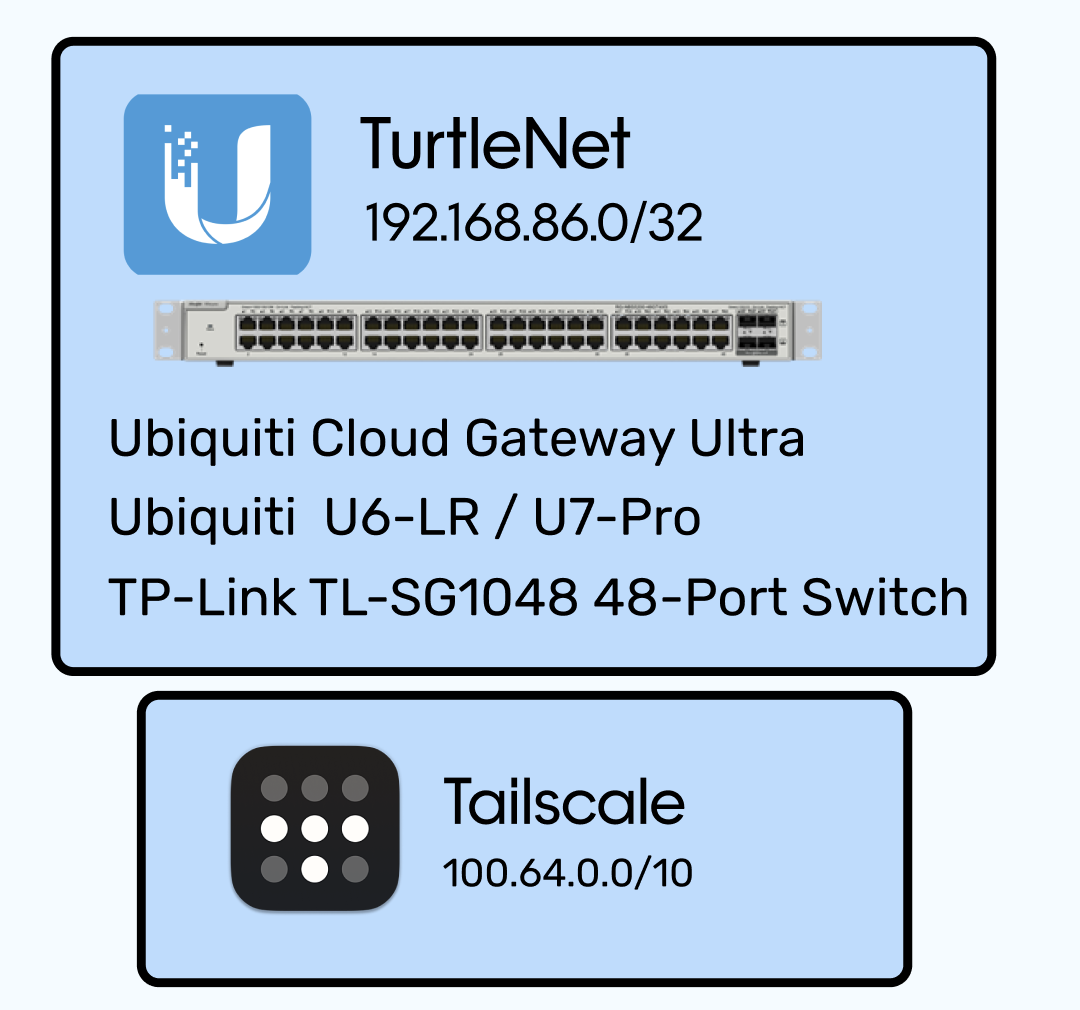
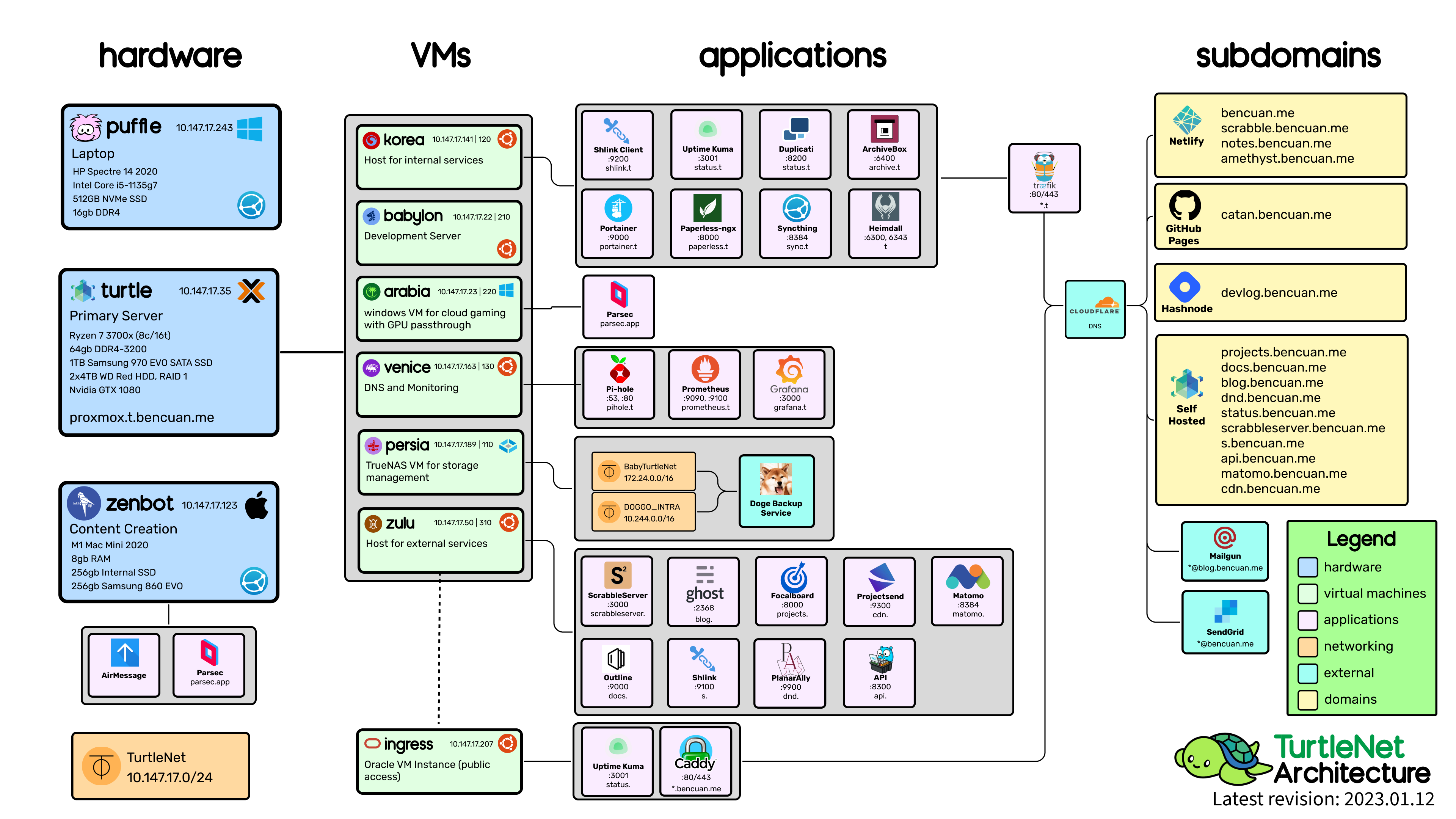
TurtleNet is my personal setup, and what I’ll be modeling this guide after. Over the course of this series, I’ll explain all the components in the diagram above, and the decisions that went into designing them.

To reiterate, I don’t want you copying every bit of my architecture- there’s a lot of stuff that makes sense for myself, but probably won’t for your use case. Part of the fun of building a homelab is forming your own opinions about what you like and don’t like; there is no single source of truth! I’ll mention common alternatives whenever they arise.

More Resources

Here are some resources that I used while setting up TurtleNet. I recommend browsing one or more of them in parallel to this guide so you can get exposed to multiple perspectives.


TurtleNet 1: Setup, and The Big Picture

Let’s jump right into it!

Here’s the architecture diagram from the last article. I’ll walk through what each part means, and how it’ll correspond to stuff we have to set up. (Click here to explore the Figma file.)

This chapter provides a high-level overview of the components in my setup, such that someone already familiar with how and why we need each part can see which solutions I chose.

If you’re not sure what most of these things are, keep reading on! I’ll break down each step in future parts.

A Summary of the Summary

Here’s the 30 second tl;dr for all the busy people out there:

A homelab refers to a server whose hardware is fully controlled by the person hosting it, and lives in a non-commercial environment like a home or school.

Using server hardware (which is basically just another computer), we can run software like Proxmox to manage virtual machines (VMs), which are full operating systems run within the server.

VM’s allow us to host a variety of services using the same hardware, even if they have different requirements.

To allow my VM’s to talk to each other (and to host private services that only I and trusted users can connect to), I use Tailscale, which is a software-defined networking solution that simulates a network switch online.

Then, to allow others to access my public services, I use a reverse proxy to redirect all requests to their internal locations without exposing where they really are. I then create DNS records to map friendly domain names (like garden.bencuan.me) to that public IP address.

The Hardware

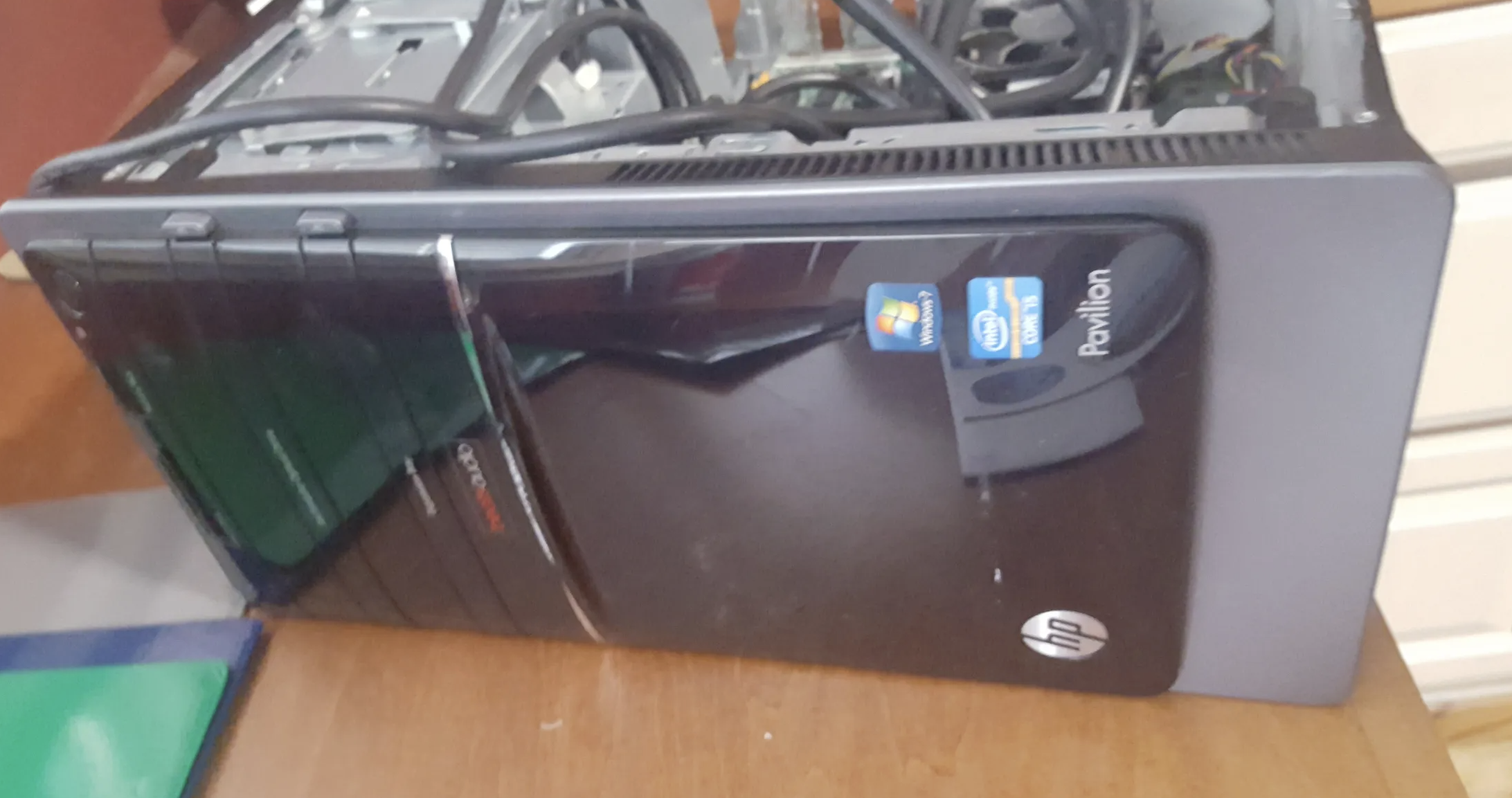
Here’s the physical computer that most services run on. If you’re familiar with gaming PC’s you may have noticed that it’s just a modern mid-range consumer desktop.

Interested in building your own computer for the specific purpose of homelabbing? Jump to Part 1.5 for a guide explaining why I chose those particular parts.

Why did I use consumer parts?

It’s common for established homelabbers to build a full rack-mount setup using enterprise hardware, since that’s the kind of stuff that’s designed to be running as a server.

However, for newer homelabbers and those who don’t need as much performance, I believe that using consumer hardware is generally a better choice for the following reasons:

  • Price and availability: Unless you’re good at tracking down when datacenters are throwing out their old hardware, consumer parts are way easier to obtain. You can buy consumer parts for a reasonable price pretty much anywhere (Amazon, Best Buy, Newegg, etc). My setup cost slightly over $1000, which is about what you’d spend on a desktop anyways.
  • Noise: Consumer hardware is way quieter, which is a huge plus if you’re running it in your house and don’t want to annoy everyone in a 500-foot radius of your server.
  • Electricity usage: Unless you’re running some crazy setup, consumer hardware shouldn’t bring up your electricity bill by that much (after all, you’re just running a second computer in the house). My particular setup runs at 80W for most of the time (equivalent to a handful of bright LED lightbulbs). On the other hand, rack setups can easily draw hundreds to thousands of watts, since they’re optimized for performance rather than electricity usage.

Alternatives

As I’ve mentioned a couple times previously, my setup of a purpose-built consumer PC is only one possible way to start a homelab! Here are a few others, and some notes about them:

  • Using an old desktop/laptop or Raspberry Pi: This is the most economical choice, and gives you more than enough power to get started. If you’re only running simple web servers or a handful of Docker containers, this might be all you need. However, if you expect to outgrow it soon, it might be better to just build one so you don’t have to migrate your services over.
  • Using a cloud provider: If you just want to get the hang of configuring server software or run a simple service purely for its utility, homelabbing may not be for you just yet! You can purchase a VM from a provider like DigitalOcean, AWS EC2, Oracle Cloud, or Linode, which will serve the same purpose of a self-hosted VM but without having control over the hardware that runs it. Typically, these VM’s are billed monthly, but for low usages many providers offer a free tier.
  • Using enterprise hardware: If you have a serious need for powerful hardware or want to take the hobby to the next level, building your own rack is the ultimate homelab setup. If you’re curious, you can search YouTube for “homelab rack” to get a variety of examples of all shapes and sizes.

Networking

While wireless internet connections like WiFi work well for personal computers, they’re often too flaky and high-latency for server workloads. It’s much better to connect them to the network via physical Ethernet cables.

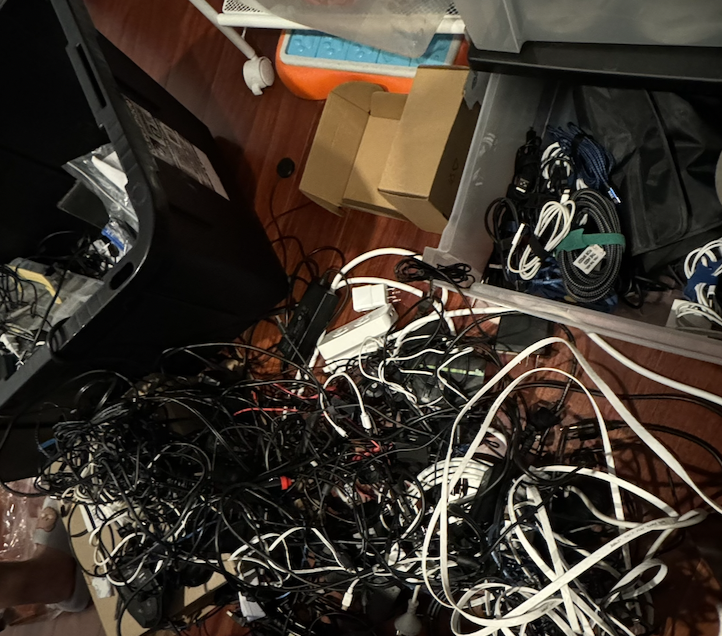
Given how many (virtual) machines I’m working with throughout TurtleNet, I wouldn’t fault you for imaginging some mess of cable spaghetti taking up all my floor space, like the below (real!) picture:

spaghetti cables

Luckily, by combining a minimal amount of physical networking (cables, switches, access points, etc.) with a software defined networking (SDN) solution, we can manage connections between machines without needing to link all of them physically!

The particular solution I went with was Tailscale, which assigns IP addresses to every machine connected to the network that can only be resolved by machines also connected to the network. (Don’t worry about the fact that my diagram is full of IP addresses- they’re all completely inaccessible to the public!)

Since I still have public services, I need some way to allow access in without having every stranger connect to my Tailscale network. So, I have one (free) Oracle Cloud VM that’s assigned a public IPv4 address while connected to Tailscale. Its only job is to run a reverse proxy which allows public access to only the particular resources I want to expose- more on that later.

Another software-based alternative to Tailscale is to run a dedicated VPN, such as OpenVPN or Wireguard. From a security standpoint all of these solutions are relatively similar, but running a VPN requires forwarding a port, and you’ll be unable to connect to the network if the host machine is down.

Virtual Machines

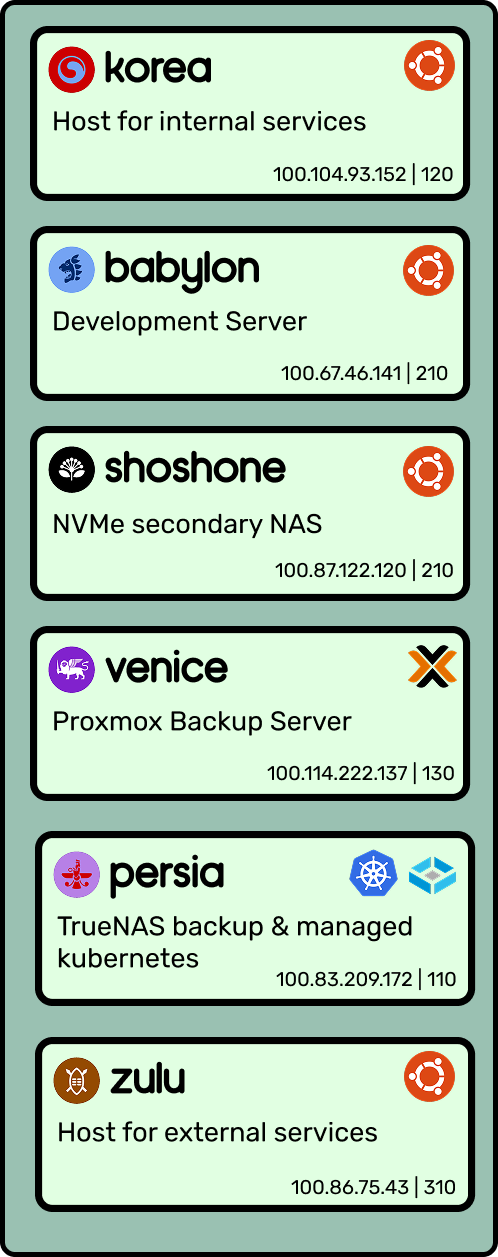
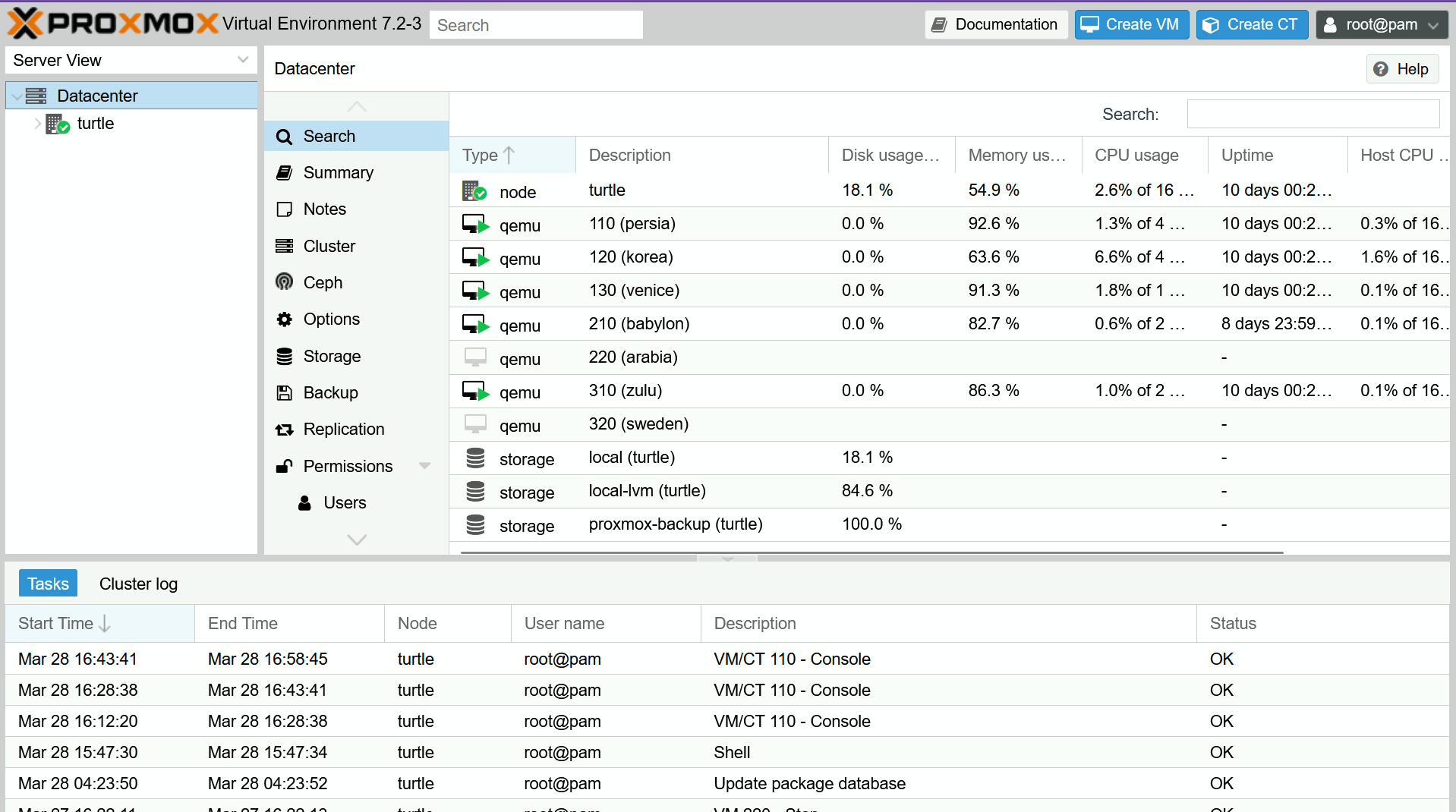
Besides the Oracle Cloud ingress, I currently host six VM’s on my main server, using Proxmox as a hypervisor:

  • Korea hosts all of my internal services (which are only accessible to machines within my Tailscale network).
  • Babylon is my development server, where I write most of my code and can quickly spin up live web servers if needed.
  • Persia is my TrueNAS instance, which manages the hard drives which are passed into it. It also hosts a managed Kubernetes instance with applications like Immich that take advantage of the additional capacity. All of the other VM’s and physical machines in the network can access its pool like any other network drive (using NFS, Windows SMB, etc).
  • Venice is where I host the Proxmox Backup Server. This server runs periodic snapshots of the other VMs and backs it up to the NAS storage.
  • Shoshone is a ‘fast’ NVMe storage pool. It’s only a single 4TB drive, but it’s enough to act as additional scratch storage I can mount to VM’s (since I’ve outgrown the main 1TB boot drive).
  • Zulu hosts all of my external services, which are publicly accessible via some subdomain of bencuan.me.

All of the VM’s above run Ubuntu 22.04. Others may have differing opinions about what OS to run; there’s no singular correct distro choice, as long as you choose one that’s reliable and familiar to you.

Applications

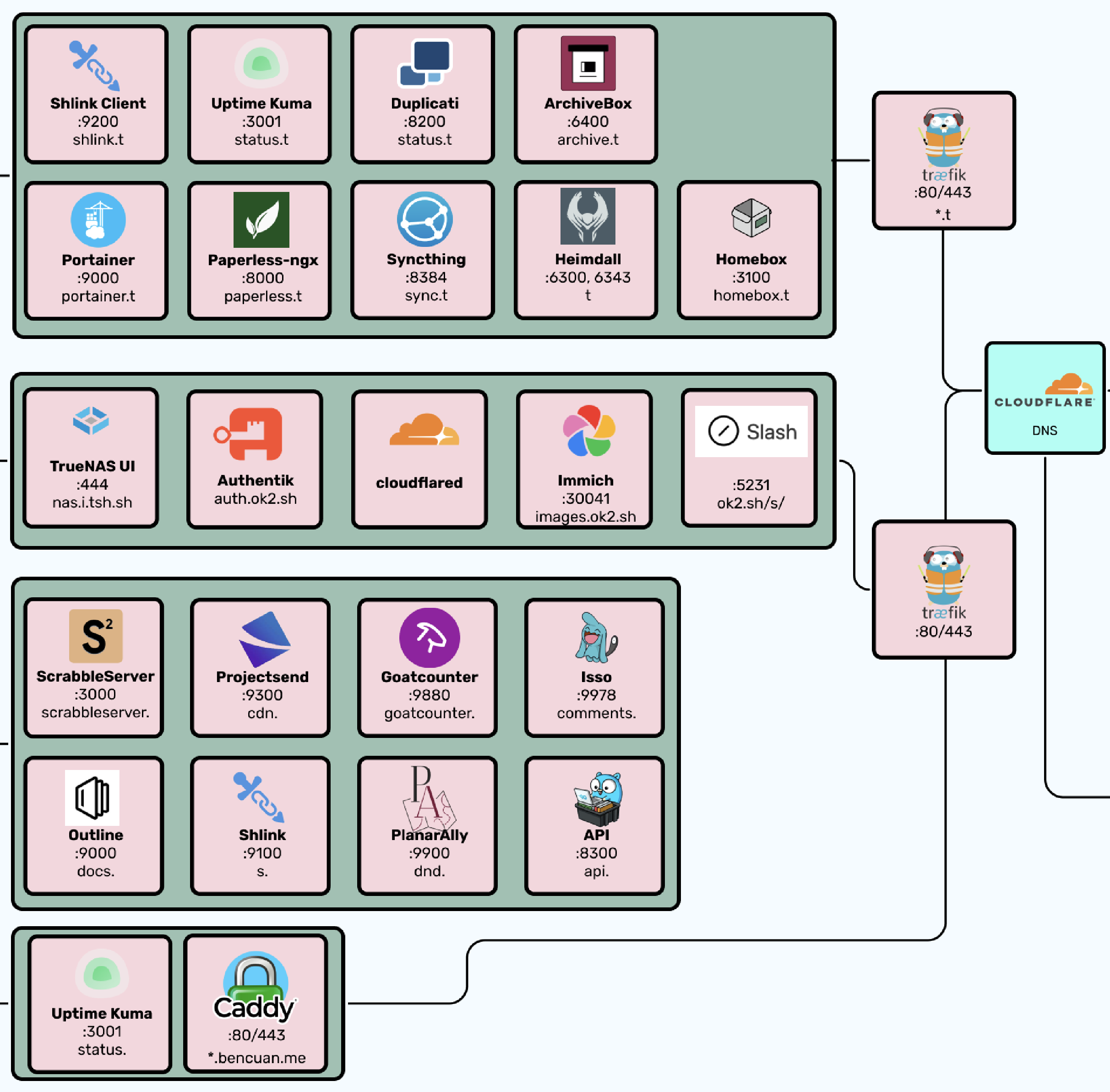
Now for the fun part! Here’s all the stuff that actually lives on my setup. Future parts will go into far more detail about how you can set these things up for yourself. There’s plenty more you can do with your own that I don’t, but hopefully this gives you a taste of the power of homelabbing:

  • Reverse proxies: Caddy and Traefik. I use Caddy to reverse proxy external services, and Traefik to reverse proxy internal services. (Reverse proxying is basically mapping domains to local IP’s and ports— again, more on what this means exactly in a future part.) The reason why I have two is because I can point the wildcard domain *.t.bencuan.me to my internal server (where Traefik is), and point all my public subdomains to the public IP of my Oracle VM (where Caddy is), making it impossible for general users to have any access to internal services.
  • Docker: I use docker-compose and Portainer to manage Docker, which is how I containerize and persist services such that multiple services can be easily run within the same VM.
  • Backup: Duplicati and Syncthing allow duplication of my most important data onto other devices like my laptop and a friend’s server, so it can be restored in case my server blows up.
  • Monitoring: Uptime Kuma provides a nice-looking status page to let users (and myself) know if something isn’t working.
  • Documentation: Focalboard and Outline provide some platforms to host private documentation.
  • Analytics: GoatCounter is a simple service that counts the number of visitors to my various public websites. Self hosting allows me to fully own the data I collect, and ensure that I’m respecting the privacy of users while still gaining helpful insights about what people are looking at.
  • API: I have a custom API written in Go, which allows me to host custom endpoints to serve things to my various websites when needed. I use this extensively throughout my Garden to serve fun one-off utilities like my Spotify ‘currently playing’ viewer, current weather, or number of visitors.
  • Guestbook: I host an instance of Isso to power the comments sections on my Garden and blog pages.
  • Shorturls: Shlink is a self-hosted version of Tinyurl that allows me to create aliases starting in s.bencuan.me- this is pretty helpful for sharing links.
  • Content delivery: Projectsend provides a way for me to host and share files with others. I mainly use this as an internal content delivery network to serve larger files with services that need to request them programmatically.
  • Archival: Paperless allows me to archive scans of physical documents, and ArchiveBox is like a self-hosted Internet Archive that allows me to save webpages locally in case they go down in the future. I also use HomeBox to organize my personal inventory of physical objects.
  • Dashboard: Heimdall provides me with a cool new tab page to hold links to all of the above services and some frequently used external services.

Subdomains

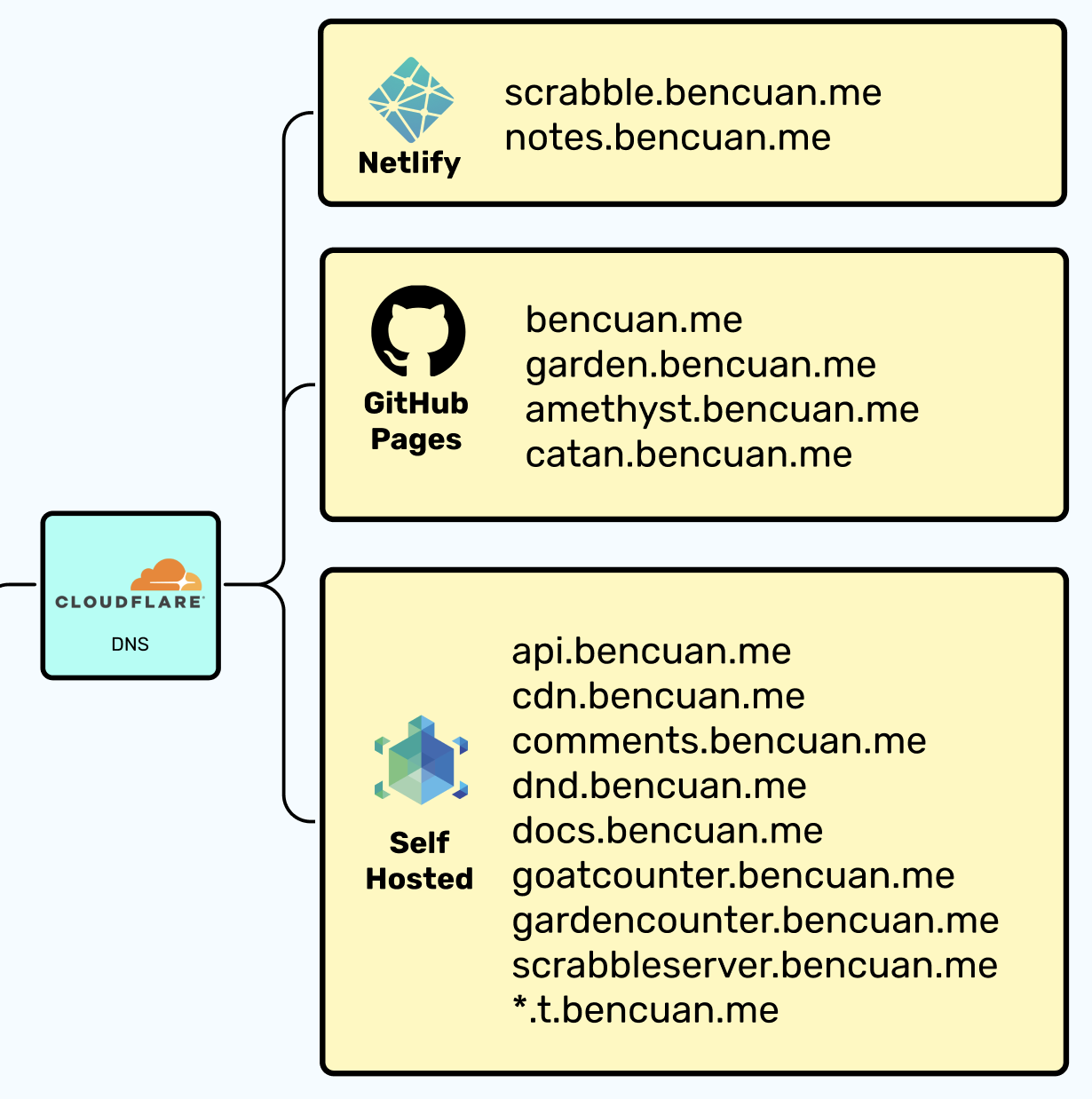
After hosting them, I need a way for users to easily access my external services. I happen to use Cloudflare as a DNS provider, but it really doesn’t matter which one you use.

For all of the domains listed in the “Self Hosted” box, I have an A record mapping the domain name to my ingress server’s public IP address. The Caddy instance hosted there then routes users to the desired resource.

My static sites are mostly built and hosted via GitHub Pages (through custom GitHub Actions workflows). If you’re really into self-hosting everything, you could consider a self-hosted Git and CI/CD solution (like GitLab) for static site hosting.


TurtleNet 1.5: PC Part Picking for small homelabs

This article is optional, and only concerns those who want to build a new server using consumer hardware. If you already have an old computer/Raspberry Pi, or are using a VPS, feel free to skip this article.

Introduction

This section is intended for those who already have some familiarity with consumer PC hardware. If this is not you, watch the video below for some more context about the parts that go into a computer, and how to build one:

Parts

CPU

I chose the Ryzen 3700x (8 cores, 16 threads). A CPU with a decent core count (preferably at least 6c/12t) is a nice-to-have for running multiple VM’s, since each VM will need to use at least 1 thread.

If I were to rebuild my computer at time of writing, I’d probably go with a Ryzen 7700x, or a used 5900XT for a larger core count.

Going with AMD or Intel is a personal choice and there isn’t any clear winner at the moment, but I ultimately decided with getting an AMD CPU since their socket compatibility is better across generations (should I ever decide to upgrade).

ARM-based offerings (like Apple Silicon or the System76 Thelio Astra) are worth following, since they’re becoming widely popular in both datacenter and personal computing environments. I still wouldn’t recommend ARM at the present moment for compatibility and upgradability reasons, though I anticipate that to change by the end of the decade.

RAM

I got 128GB of RAM. Like core counts, this is another thing you’d ideally want a lot of to support running multiple VM’s.

I’m aware of the fact that RAM prices are skyrocketing at time of writing and 128GB in a single consumer machine today would be practically unobtainium. So do the best you can, and expect to be ripped off :’) but it’s still worth collecting as much as you’re able to. Consider purchasing used DDR4 sticks instead of DDR5 to reduce cost, since memory speeds and bandwidth are less important for most server applications (though this will also limit your CPU compatibility).

AMD Ryzen CPU’s support unregistered ECC memory, which provides extra error correction (useful when your server will be on for many months without a reboot). However, unregistered ECC is pricey and hard to obtain, so I decided that it wasn’t worth it for me. Maybe it is for you though! (Don’t get registered ECC- this type of memory only works on server platforms like Xeon.)

GPU

The question of ‘what GPU should I get?’ depends on what applications you’re planning on running.

  • If you’re a cloud gamer, you probably want a mid-range consumer GPU (like a RTX 5070 Super).
  • If you’re doing light/hobbyist AI development, you may want to consider a used RTX 3090 or 4090 (or a 5090)— however, make sure your case and power supply are beefy enough to handle it. You can also consider purchasing a DGX Spark or similar platform and connecting it to your network as a separate machine from your main server.

An ideal homelab setup with GPU passthrough would have two GPU’s: a low-powered cheap one to have output from Proxmox, and a higher-powered GPU to pass through to one VM. (Once the second GPU is passed through, it will no longer be accessible by any other VM!) For my setup, I got a used GTX 1080 for ~$250 on eBay (average price is likely lower when you read this- sort price from low to high).

You can get cheap used GPU’s for less than $50 like the GTX 1050 if you only need a basic video output for debugging purposes.

Case

In general, any standard size case will do. The main feature you’re looking for is the number of drive bays, assuming you’re building in NAS support. The Fractal Design R5 has 10 drive bays, making it an excellent choice for building a homelab. (I reused an old case from a previous non-server build, the CoolerMaster NR600.)

SSD

You’ll probably want some fast persistent storage to actually run VMs and Proxmox off of. You usually don’t need a lot of capacity- most VM’s will only require 32-64GB and you’ll only be running a handful.

I got a 1TB SSD; half of it is used by the Windows gaming VM though, so in practice it’s just a 500GB SSD.

Hard Drives

Typically, a storage server works by using software to combine many individual hard drives into a large pool.

If you’re planning on using ZFS or RAID (i.e. having some redundancy in case of disk failure which will happen if you’re running them 24/7), getting 3 or more identical disks will make configuration easier than mixing and matching.

Buy more disks than the actual capacity you want! You can find calculators online to see how much raw storage you need to achieve a certain capacity (ZFS here, RAID here). Generally, buying a little less than double your desired capacity is a safe bet (for example, if you want 10TB, buying 4x4TB (16TB raw) in 4-wide RAIDZ1 will do the trick).

UPS

An external UPS (Uninterruptible Power Supply) is highly recommended, since it will protect against power surges and outages by allowing your server to gracefully shut down whenever main power is cut.

When purchasing a UPS, look out for Pure Sine Wave (not approximate or stepped approximation)- although more costly, it can reduce the risk of damage to your components.

The most economical method of purchasing a UPS is to get it refurbished from a reseller such as ExcessUPS. You may also need to purchase a new battery for it (these are fairly standardized and found in many stores, both online and retail).


TurtleNet 2: Getting Started with Proxmox

At this point in the series, my hope is that you now have a very high-level sense of what you might want to achieve with your homelab, and know the high-level steps you’ll be taking to get it up and running.

Additionally, you should now have your desired hardware in front of you (or, have acquired access to a VPS or virtual machine of your liking). I’ll make the assumption that you’re using your own hardware from now on; if you’re not, use your best judgement on what parts might need to be tweaked or ignored for your particular case! To reiterate, my intention is to give a framework to build up your own intuition of how all of this works, instead of giving a step-by-step guide.

The Hypervisor

Great, so now you have some hardware that’s ready to do things. Let’s install the software that it needs!

Since we’ll be installing multiple virtual machines, we need a main operating system to help manage all of them. Proxmox is my tool of choice, due to its wide support, included web interface, and the fact that it’s free and open source. But under the hood, Proxmox is basically just a souped-up version of Debian, so if you really wanted to start from scratch you could get most of its functionality by installing the right things on a basic Linux instance.

Installation

Installing Proxmox is extremely similar to the way you’d install any other operating system. If you haven’t installed Linux before, feel free to take a quick intermission and refresh yourself on the installation process.

Proxmox can be installed via live USB like any standard Linux distro. Just make sure to flash it in DD mode, not ISO mode! If you’re using a GUI application like Rufus, there should be a visible toggle to change this.

Once you boot up your server with the Proxmox live USB, the GUI will walk you through the process for the most part. Here are a few important notes to keep in mind as you click through the prompts.

Make sure that you record the root password! If you forget the password, you’ll need to start over. When logging in, the default username is root and the password is the one you set.

Domains

Proxmox is best used when you have a publicly addressable domain name (like bencuan.me). I would strongly encourage you to purchase one using your favorite provider (Porkbun, Cloudflare, and Namecheap are a few I have used before and have had good experiences with) if you can afford it; it’s only around $10 per year. You can even get a free .me domain if you’re a student! You can still use Proxmox with a local domain only (conventionally ending in .local)- you’ll just need to manually configure your DNS to resolve this in a later step if you wish to go this route.

It’s fine if you’re not familiar with how domains work right now- just acquire one, and we’ll do lots of fun stuff with it later.

When the installer prompts for the domain, be careful since the subdomain will automatically become the hostname of the machine! For example, using the domain turtle.bencuan.me will set the hostname of the machine to turtle. Changing the hostname afterwards is possible but it’s best to avoid it since it can be a hassle.

Post-installation

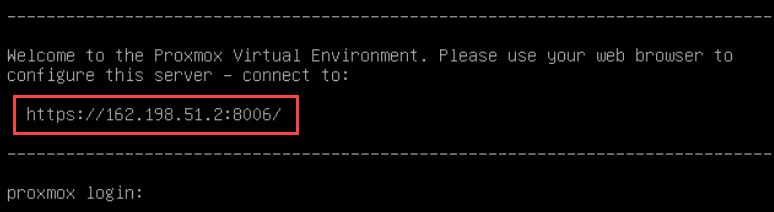
After installation completes, a message in the console should prompt you to connect to the web client, and provide some instructions on how to do so:

Install Proxmox VE {Step-by-Step Guide}

If this message does not appear, check to make sure that the pveproxy service started correctly (using systemctl status pveproxy and/or journalctl -xe).

You may also need to enable virtualization in your BIOS if you have not done so already. For AMD CPUs, this setting is called SVM Mode or something similar; for Intel CPUs, it might be called “VT-X”, “Intel Virtualization”, or something similar. You should refer to your particular motherboard model’s manual if you can’t find it, since each manufacturer may call it something different.

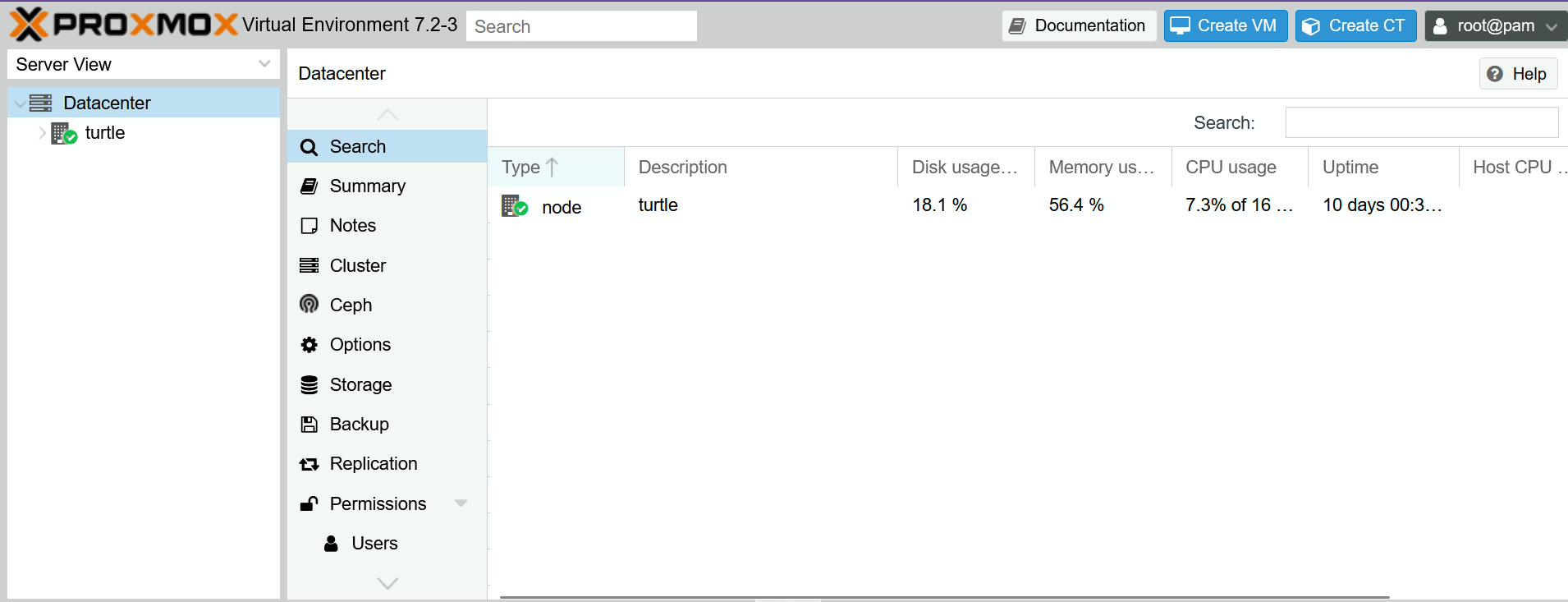
If all went well, you should be able to access the web client from your web browser on another computer! It should now look something like this:

There’s a lot of settings, and we’ll go over them in due time. For now, here’s a list of the most important tools and metrics:

  • On the top left, you should see a “Datacenter” tab, followed by your node. If you click on your node, you should then be able to see some basic information about it in the “Summary” tab:
  • If you need to access the shell to enter commands, you can do so by clicking on your node, then selecting the “Shell” option in the sidebar (this is functionally equivalent to SSHing into your Proxmox machine from another terminal):
  • The reboot/shutdown options are available in the “Search” tab:

The first thing you will likely need to do is disable the paid Proxmox repositories by going to your node -> updates -> repositories. You will still be able to get the latest updates, but Proxmox has extended features and security updates that are exclusive for businesses or other paying customers. As hobbyists, using the free repositories are perfectly fine.

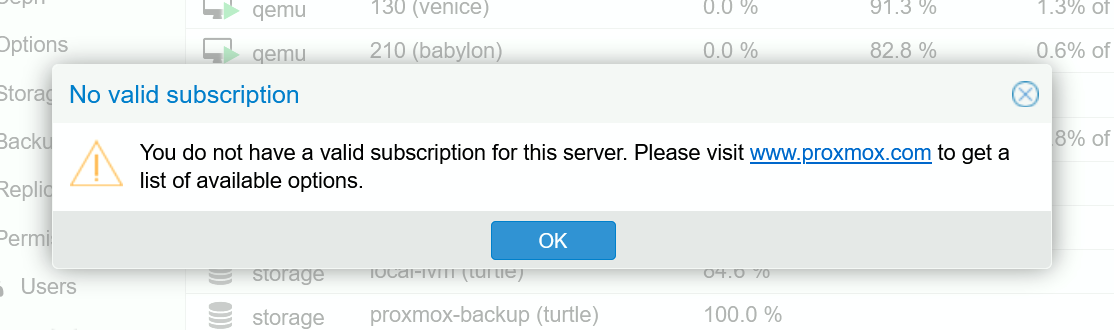
You’ll get a popup (see above) every time you log in notifying you that you don’t have a subscription. This is 100% expected, and there are ways to disable this popup if you find it annoying.

Creating your First VM

Now, we’re finally ready to make some virtual machines!

You can choose to run practically any operating system on a virtual machine. Typically, most VM’s run some form of Linux, but it’s fairly common to run Windows or even Mac VM’s depending on your use case.

Regardless of which OS you desire, you’ll need to acquire the ISO and download it to the /var/lib/vz/template/iso folder. Here are the steps:

  1. Find the ISO online. For example, the Ubuntu Desktop ISO can be downloaded from this link.
  2. Open the Proxmox shell, log in to your root account, and navigate to the correct folder: cd /var/lib/vz/template/iso
  3. Download the ISO using wget, curl, or some similar command. For Windows ISO’s, make sure you surround the link in quotes in the command since it has spaces.

Naming/Numbering Schemes

Although this is completely optional, it’s fun to come up with a cohesive naming scheme for your VM’s so that it’s easy to keep track of them (and come up with names in the future)! As an example, I name my VM’s after popular civilizations from the game Civilization V (babylon, arabia, persia, and so on). Some other ideas just to throw them out:

  • names of famous scientists/people from a particular field
  • names of elements (if sufficiently heavy, could even correspond to your VM ID’s)
  • any category (animals, cities, cars) but in alphabetical order

Less optional and more important is the numerical ID’s you will need to assign to your VM’s. Each VM will have a unique ID number, which cannot be changed after creation. You can choose to assign these ID’s in any way you wish, but it’s helpful to group them together in some way. As an example, my VM’s starting with 1 host critical services (like DNS and NAS), those starting with 2 host external services, and those starting with 3 host internal services.

VM Options

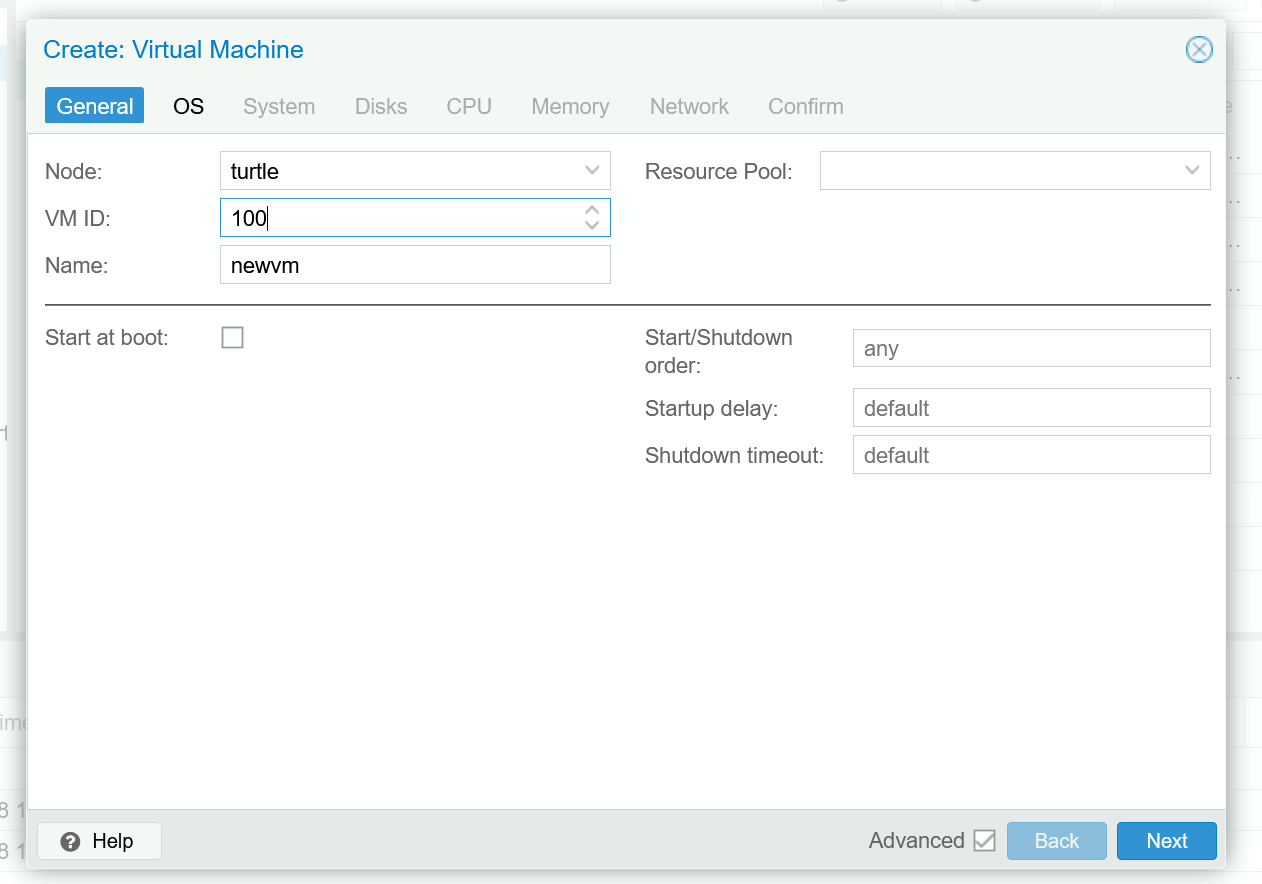
Now, let’s begin the creation process by hitting the “Create VM” button:

You’ll first need to assign the VM name and ID. Remember that the ID can’t be changed, so make sure it’s correct!

You might also want to select the “Start at Boot” option if you want the VM to automatically start when the server starts.

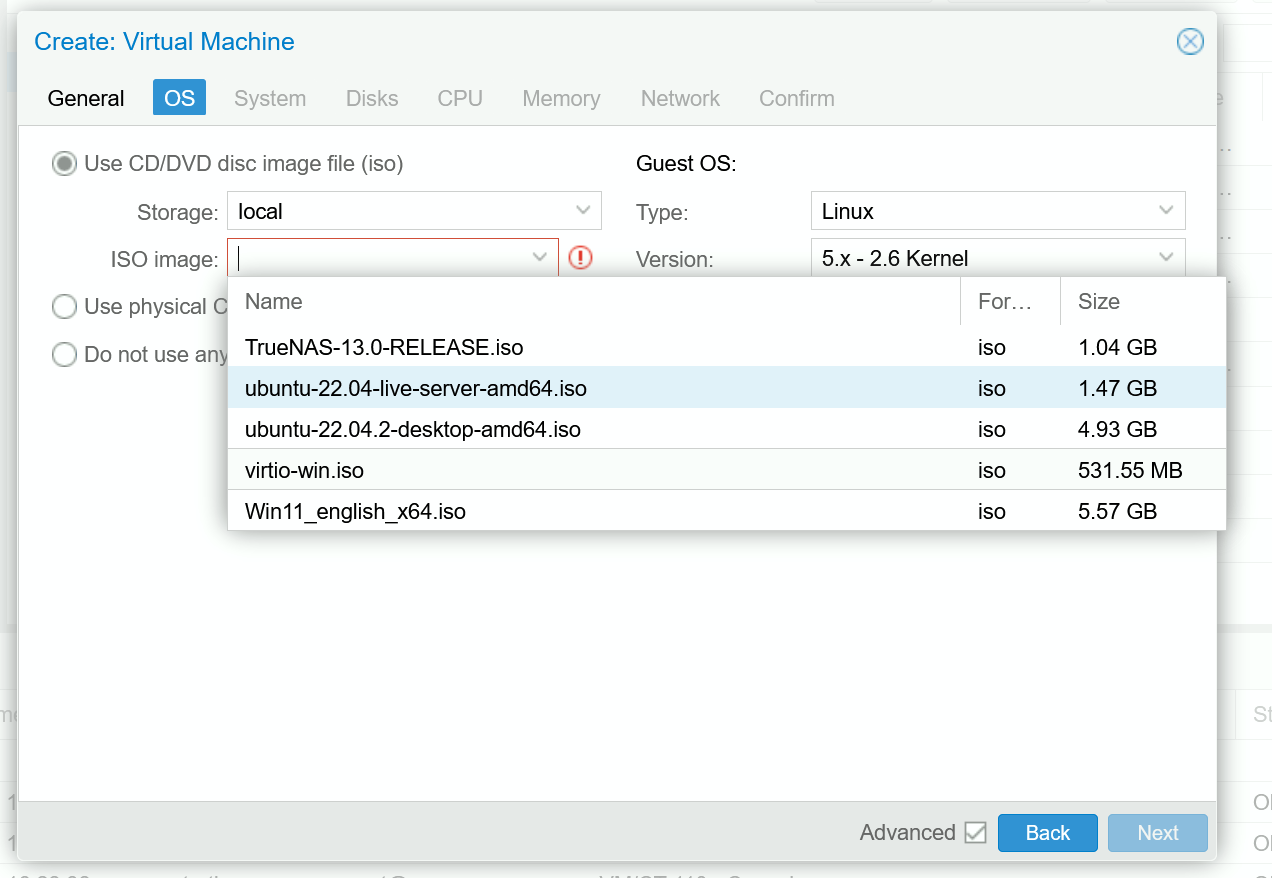
Next, go to the “OS” tab and select the ISO you just downloaded. Make sure that the “Guest OS” settings match the type of operating system that you’re installing.

For the “System” tab, let’s leave everything at default for now. We can change this later if we want to do something fancy like GPU passthrough.

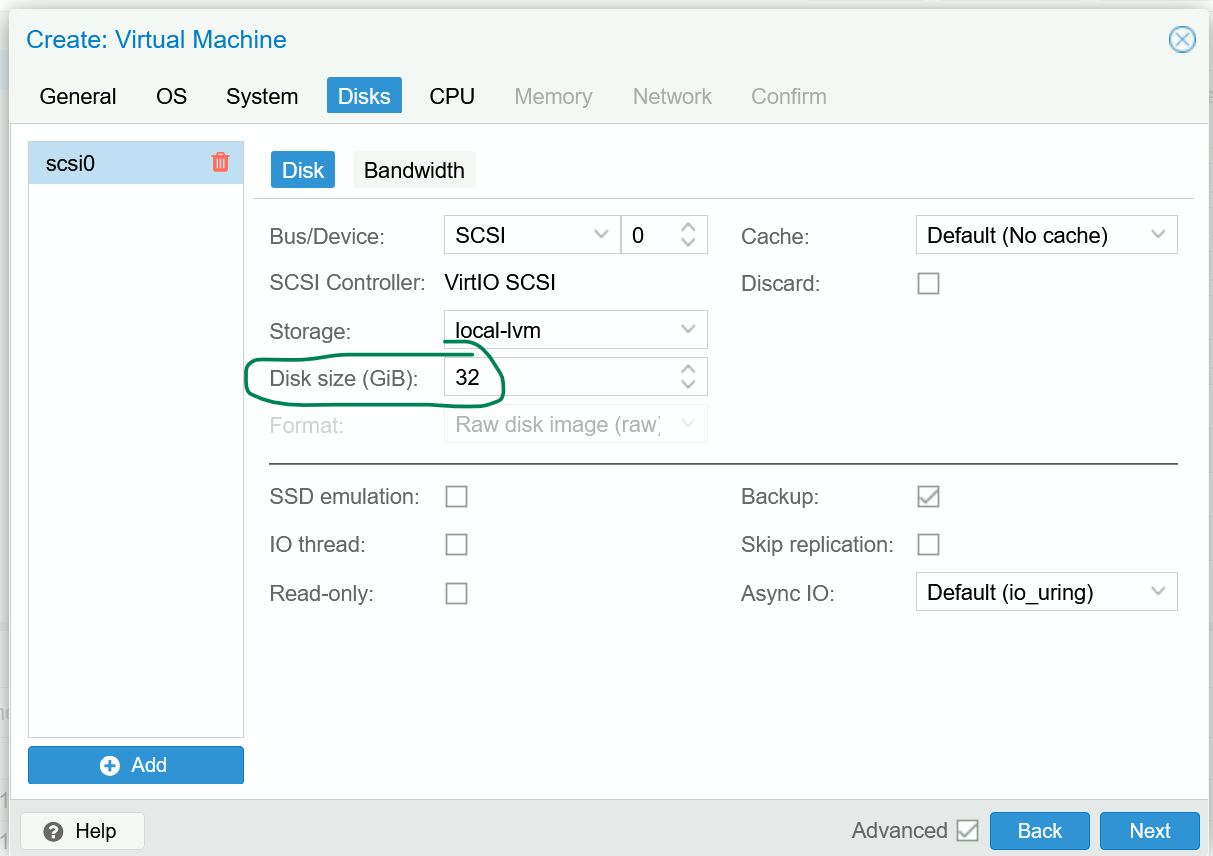
For the “Disks” tab, specify how much space you want this VM to take up. From personal experience, 32GB is enough for a small number of basic server tasks, and 64-128GB is a safe bet if you’re planning on doing a lot on this VM. You don’t need to change any of the other options if you’re not sure what they do.

For the “CPU” tab, specify how many cores you want to dedicate to this VM. If your CPU supports hyperthreading (nearly all modern CPUs do), a “core” in Proxmox is equivalent to one “CPU thread”. So, a 4-core, 8-thread CPU would have 8 “cores” available to assign to VMs.

For the “Memory” tab, specify how much RAM you want to dedicate to this VM. You can select the “Ballooning Device” option for most applications, which will reserve memory when needed rather than eating up the whole block when the VM boots up.

That’s pretty much all you need to do for now! Go to the “Confirm” tab and ensure all of the options are what you want. Then, click “Finish”, and after a few seconds your new VM should appear in your server node!

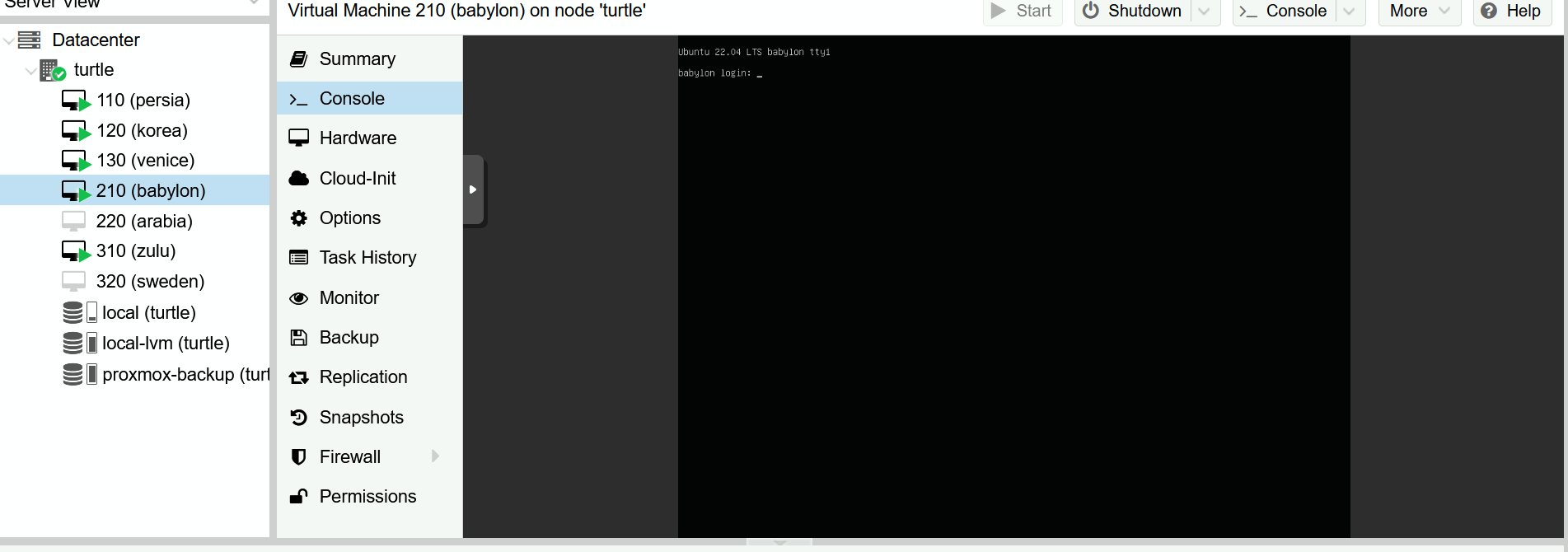
You can start the new VM by right clicking it in the sidebar and selecting the “Start” option. You’ll probably need to go through initial setup similar to what you did for Proxmox itself, which can be accessed in the “Console” tab:

Summary

Congrats, you now have a working Proxmox instance that’s hosting a virtual machine! While it doesn’t really do much of anything yet, we’ll get started on installing services on it right away.

If you’re interested in adding a GPU or other devices to the VM, you can proceed to the next mini-section. Otherwise, move on to Part 3!


TurtleNet 2.5: GPU Passthrough with Proxmox

Introduction

This section is optional, and provides additional context in the case that you would like to attach a GPU to your VM. This can be useful for a variety of tasks, such as setting up a cloud gaming server (which we’ll do now) or performing machine learning- or graphics- related tasks.

As a disclosure, you can find lots of guides on how to do this online: here’s one, and here’s another. The information here summarizes the process I took to get my setup working, but yours may be different so just be patient and try more than one guide if it’s not doing what you expect it to!

Disclaimer: Multiple GPUs make life easier!

Essentially, what GPU passthrough does is that it donates the entire graphics card over to the VM. That means that Proxmox, and by extension every other VM, will no longer be able to access the card you pass through!

For most cases, this should be perfectly fine (as long as you’re not running anything that requires a GUI, like Windows, on other VMs). However, you’ll probably find it much easier to have two GPUs: one cheap, low-powered primary GPU to drive Proxmox, and a higher-powered GPU to pass through to the VM that needs it.

Preliminary Checks

  1. Make sure that the GPU is plugged in and detected by Proxmox: If the hardware is faulty, then none of this will work of course! You can ensure that the GPU is detected by entering the command lspci. Your GPU should show up in the output, along with an ID (such as 06:00).
  2. Make sure that the VM you want to pass the GPU through to is working: Before doing the passthrough, the VM should be accessible via the Proxmox console. You should also set up SSH, Remote Desktop, Parsec, or another service that will allow you to access it if it’s working, since the Proxmox console will be disabled after passthrough!
  3. Make sure that no other VM’s are using the GPU at the same time: Only one VM can use a passed-through GPU at a time. If another VM needs access to the GPU, either ensure that only one of them is running at a time, or get a second GPU to pass both through.

Follow the guide

In the interest of conciseness, I will defer to the large collection of pre-existing guides. Try your favorite one, and come back when you’re done, even if things aren’t working!

here’s one, and here’s another.

If things are working

If GPU passthrough is working, you’ll notice the following:

  • Attempting to connect via console will give an error.
  • Plugging in a monitor via HDMI/DP directly to the passed through GPU will give the VM output, not the proxmox console.
  • Even if ballooning is enabled, the VM should use 100% of its allocated RAM.
  • If you set up SSH or another form of access, you should be able to access the VM as usual from other devices.

Should the above be true, congratulations! You have successfully implemented GPU passthrough.

When things are not working

Chances are that passthrough didn’t work the first time around. (It didn’t for me either!) Here are a few debugging steps I followed that worked for me:

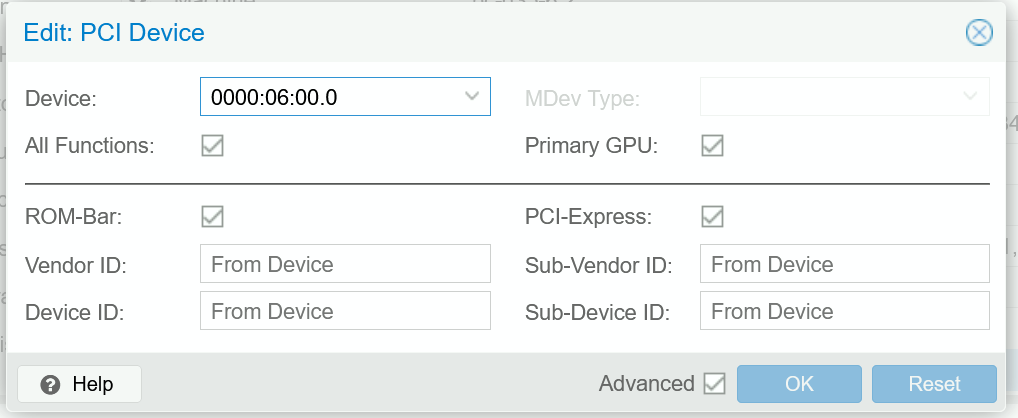
  1. If you’re passing through to Windows, your PCI device should look like this:

    If you’re passing through to Linux, your PCI device should look the same as above, except “Primary GPU” should be unchecked.

  2. Make sure that the “Machine Type” of the VM is q35.

  3. If you’re using an NVIDIA 10-series GPU (like a GTX 1070), this ROM patcher might be necessary.

  4. It’s possible that the GPU is being used by another process (Simple Framebuffer seems to be a common culprit). You can use these steps to fix this:

    1. Run cat /proc/iomem in the Proxmox shell to view a list of PCI devices. You should be able to identify your GPU in this list, and it should not be used by any processes (assuming the VM is shut off). For example, my GPU is device 06:00 and my output looks like this:

    2. If your output does not look like the above (might have more things under the “PCI Bus 0000:06”), run the following code block, replacing XX with the desired ID:

      echo 1 > /sys/bus/pci/devices/0000\:XX\:00.0/remove \
      echo 1 > /sys/bus/pci/rescan
      echo simple-framebuffer.0 > /sys/bus/platform/drivers/simple-framebuffer/unbind

      You may need to run this every time the server reboots.

  5. If none of the above works, view the error log using tail -100 /var/log/syslog . If the system is having trouble processing the GPU, you’ll probably get a huge amount of error spam in this output that you can paste into Google and get more useful results.


TurtleNet 3: Tailscale and Private Networking

Before we can properly offer services on our VMs, we’ll need to make sure they are accessible over the Internet!

However, simply exposing the entire server to the Internet (via portforwarding or otherwise) is extremely dangerous, since it allows anyone from anywhere in the world to connect to your private services, like the Proxmox console. Even with proper security measures and strong passwords, it’s impossible to guarantee that malicious actors won’t be able to find an exploit and steal your private information!

As a solution, let’s be careful to separate network access to public services, which anyone can interact with, and private services, which only you and authorized users can access.

In this section, we’ll set up our private network.

Connecting to the Internet

I assume that if you’re reading this guide, you already have a home internet setup. Let’s dig in a bit to understand what’s actually going on behind the scenes!

Internet Service Providers (ISPs)

Unless you own an IP block (and if so, you probably already know everything in this guide anyways…) you likely pay an external provider like AT&T or Xfinity for access to the Internet. Your ISP is responsible for the physical infrastructure connecting you to to the public Internet.

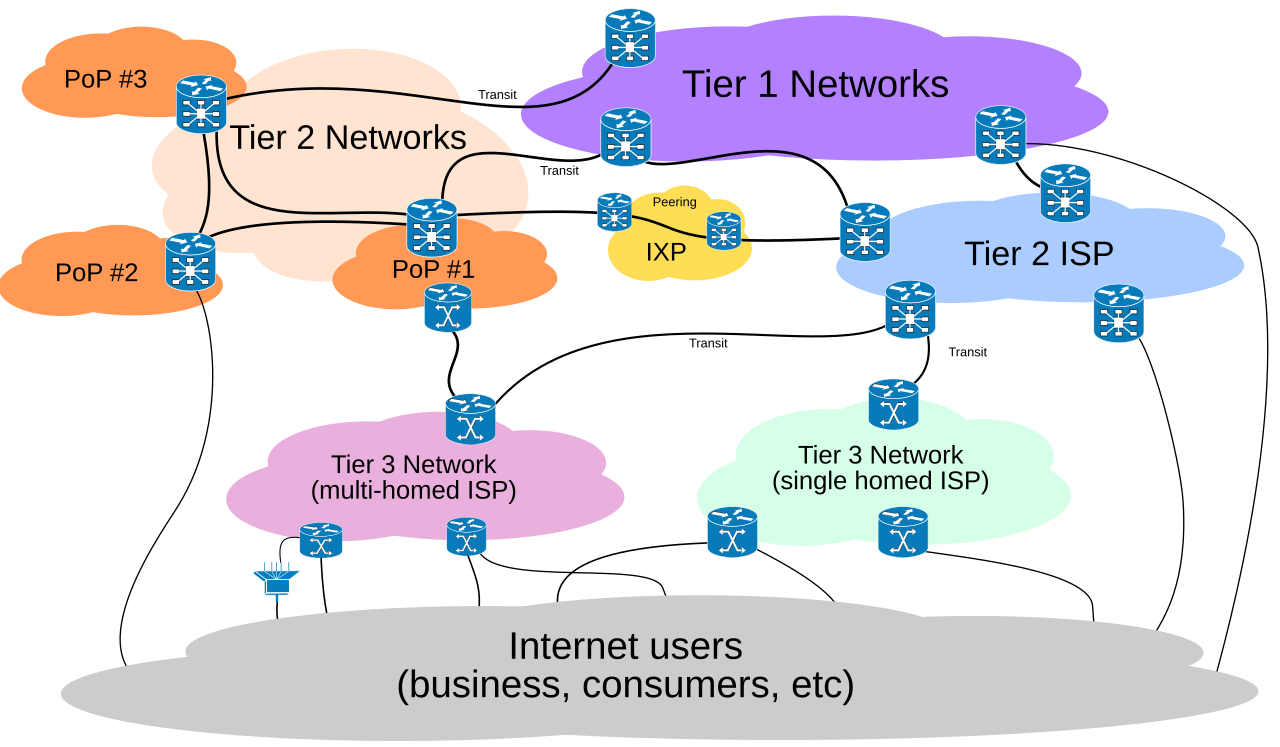
tiers of internet networks (source: Wikipedia)

Your ISP has peering connections with other higher-tier ISP’s around the world, so they broker cross-network communications on your behalf. All you see on your end is that you send them a request (like “connect me to google.com”), and they’ll figure out how to find Google’s servers for you. The rules are quite a bit more complicated than that (you can do research on BGP and Gao-Rexford Rules if you’re curious), so it’s nice that you don’t have to think about it that hard.

Your Router

When you first set up your internet, most modern ISP’s will assign a technician to activate your connection for you. Sometimes, they’ll also come in-person to do some wiring work. The end result is that you’ll have a live Ethernet connection to the outside world somewhere in your house.

You’ll then commonly plug a router into that Ethernet port, which acts as a small computer that creates a private network for you. The router often also hosts a WiFi network, and has a built-in switch, to enable many devices to connect all at once. They come in all shapes and sizes, most frequently in some form like the one below:

a stock photo of a router

Notably, there are now two parallel “IP spaces” that your devices address to!

On your personal computer, you can see your private network by typing in the command ifconfig | grep -w inet into your terminal (or, ipconfig on Windows). You should see a localhost like 127.0.0.1, followed by your private network IP, usually starting with 192.168, 10.0, or 100..

ifconfig showing two private networks

Then, if you go to whatismyipaddress.com or a similar website, you can see your public IP address. Notably, your public IP address should be the same across different devices on your same network.

Networking Switches

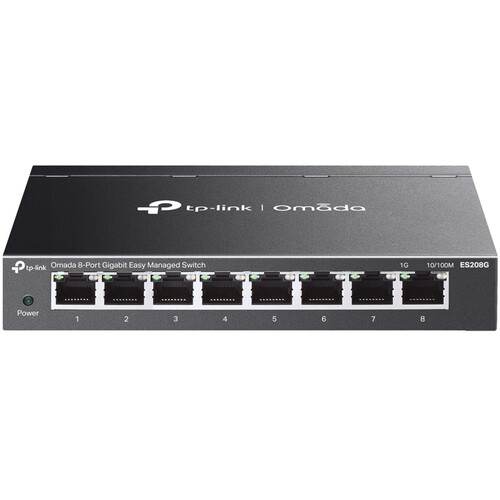
If you run out of ports on your router to plug things into, you’ll probably want to buy a switch. They look something like this:

tplink switch

Typically, switches will allow you to plug in arbitrary Ethernet connections between your various devices. As long as any one of the connections is attached to your main router/ISP, the rest of the attached devices will also have network access.

You’ll see the prefix “managed” or “unmanaged” thrown around online. An unmanaged switch isn’t configurable (and needs a separate computer/router), whereas a managed switch provides additional options for traffic routing and address assignment. You’ll likely be fine with an unmanaged switch for nearly all homelabbing applications, but given that a managed switch isn’t that much more expensive, I’d recommend picking one up to tinker with for fun.

Mesh Networking

If you happen to have a large area you need your network to cover (or just want your wifi connection to be extremely good), you can consider setting up a mesh network, which allows you to attach multiple routers and access points to the same private network.

If you’re looking for a starting point, many other homelabbers like using Ubiquiti for their mesh networking.

Introducing Tailscale

Without any further configuration, everything is private by default: in order to access the Proxmox web console, you’ll need to be on the same network as your server at all times. It’s also hard to access VMs from other devices, since they’re networked internally within Proxmox itself.

Let’s first build up our private access, such that you and others can access server resources even when you’re not physically next to the server.

As I explained in Part 1, there are many alternatives to Tailscale that achieve similar things through slightly different protocols, like ZeroTier or Teleport. You are welcome to choose what works best for your use case, but for now I’ll use Tailscale as an example of how a private networking setup might look like.

How does Tailscale actually work?

Tailscale essentially creates a virtual, software-defined network that you can add devices to. Regardless of what physical networks or locations those devices are in, they’ll all be connected to the same Tailscale network, allowing them to access one another as if they were in a local access network (LAN) setup.

The technical details of how this is possible without portforwarding is beyond the scope of this guide, but you’re welcome to read the documentation and explore UDP hole punching to learn more and confirm that it’s secure for your use cases.

Tailscale Setup

First, you’ll need a Tailscale account, which you can make on the website here.

Once you have an account, you can create a network. The setup dialogues should walk you through this process, then suggest you to add your first device.

Joining the Tailscale Network from an external device

As a warm-up to VM configuration, let’s see how the joining process looks like using an external computer or phone.

First, download the correct Tailscale distribution for your device here. Then, you should be able to authenticate as yourself via a browser prompt and select a hostname to identify your device.

Your device will automatically be registered, connected to the network, and assigned an IP address. For example, on my Mac, it looks something like this: tailscale-1

Now, when you type in your ifconfig | grep -w inet command again, you should see three lines instead of two! The last one should be your Tailscale IP.

ifconfig

Joining the Tailscale Network from your VM

Now, let’s do the same thing from with your VM!

The process is pretty similar, only we don’t have a GUI anymore. Instead, you can do the following (taken from the official Linux install guide):

  1. Open the Proxmox web console, and navigate to the live console instance for your VM.
  2. Run the command curl -fsSL https://tailscale.com/install.sh | sh to install the Tailscale command line interface.
  3. Run the command sudo tailscale up, and follow the instructions to authenticate.
  4. The terminal should now signal that the join was successful. You can verify this with ifconfig, or with tailscale status.
  5. You can also verify that Tailscale is working as intended by pinging your VM’s hostname from your laptop (since they’re now both on the same Tailscale network)! For example, I can type in ping dino from my VM if my laptop’s host is named dino.

Joining the Tailscale Network from Proxmox

Doing this is exactly the same process as joining Tailscale from your VM, except now you should go through the steps in the Proxmox shell rather than your VM’s console. After you assign your Proxmox instance to a domain name, you should now be able to access your Proxmox console using https://node.domain.tld:8006 in your web browser. For example, my server is named turtle and my domain is bencuan.me, so I could type https://turtle.bencuan.me:8006.

Local Resolution

If you didn’t acquire a public domain, you’ll still have to use your IP addresses to access your VM’s. We’ll see how we can set up a custom DNS server to get around this in a future step.

SSH

Depending on your distribution, SSH may or may not be enabled by default in your VM. If it is, you should now be able to run ssh vmname.domain.tld (replacing with your actual VM name and domain, of course) and connect to your VM from your other devices.

If this is not the case, you may need to install it and/or enable it manually. This is how to do so for Ubuntu/Debian-based systems (look up how to do it on your OS of choice if this does not apply):

  1. Run sudo apt install ssh
  2. Run sudo systemctl enable ssh.service --now

To save time for future logins, you can set up public key authentication so that you don’t have to type in your password every time you SSH into your VM. (This is only available for Linux-based VM’s.)

  1. On your personal device, run ssh-keygen if you haven’t done so before.
  2. Run ssh-copy-id <username@vm.domain.tld> , replacing the part in brackets with your actual VM user and address.
  3. Type in your VM’s user password once.

Remote Desktop

If you’re using Windows or another OS with a graphical interface, you can access the GUI through Proxmox’s default console view. However, you might have noticed that this console can be extremely laggy or unresponsive at times.

If you will need to access your VM graphically for things like gaming or video editing, you should set up some sort of remote desktop service.

  • For Windows and Mac VM’s, I highly recommend Parsec- it’s given the best latency/responsiveness out of all the remote desktop applications I’ve tried so far.
  • For easiest access to Windows VM’s, you can alternatively use the built-in Windows Remote Desktop. A client is automatically installed on all Windows devices, so you don’t need to install any additional software to access it. (Note that a Windows Pro VM is required.)
  • For Linux VM’s, you can use the VNC protocol. There are many clients for this: see here for a guide on how to configure VNC.

Summary

If you’ve gotten this far, you should now be able to access your VM from anywhere, but only on your personal devices! This will allow you to access server resources such as the Proxmox console even if you’re not connected to the same network as your server.

Next, we’ll take advantage of our private Tailscale network to set up a reverse proxy to access internal services in a convenient manner.


TurtleNet 4: Reverse Proxying Your First Service

Introduction

It’s taken a little while, but we’re finally ready to host our first service in a VM!

This section is very choose-your-own-adventure: I’ll give an example of how to set up a service I run (Portainer), as well as the general framework I use to spin up new services. You should then be able to apply this framework to installing any other service of your choice!

If you’re planning on running a lot of services on bare VM’s, you basically have two options:

  1. Make a VM for each service you’re offering: this helps keep each service separated in the event of crashes or resource conflicts, but takes up a lot of additional compute resources. Managing a huge amount of VM’s is also somewhat time consuming.
  2. Run most/all of your services on a single VM: this saves lots of compute power, but you will run into conflicts rather frequently. For instance, if two of your services both use MySQL, they might overwrite each others’ database entries if configured improperly!

It’s evident that neither of these options are quite ideal. Luckily, there is a solution to this:

Containerization!!

Essentially, containerization is the process of making very standard, mini-images within one operating system. These images are almost like VM’s, but don’t need dedicated disk space, memory, or processor cores like a VM does. In addition, due to how standard they are, you can install them on practically any device and they will still work in exactly the same way.

One of the most popular containerization management tools used in the software industry is Docker. Besides providing the containers, Docker also provides lots of other goodies like:

  • A standard way of defining and sharing container images through Dockerfiles;
  • Rudimentary virtual networking that allows each service to either be isolated or to communicate with one another;
  • Reliability and crash recovery (containers can auto-restart on crash).

Aside: But what about Kubernetes :k8s:??

If you have heard of Kubernetes and want to use it to power your own server, go for it! I will warn you that it gets fairly involved, and is somewhat overpowered for any hobbyist system- but that being said, part of the fun of homelabbing is playing around with things and learning how to use them!

I wrote an interactive lab for getting started with Kubernetes if you’d like an intro and some additional resources.

Docker Setup

Installation

Docker can be installed by following the official documentation. Note that we want to install Docker Engine and not Docker Desktop since we are only interacting with the command line. For example, here are the Ubuntu installation instructions.

You may also need to install Docker Compose.

To verify that you have both successfully installed, run docker --version and docker-compose --version.

Some notes on config management

There are multiple ways of managing and configuring services using Docker Compose. These include:

  1. Making one docker-compose.yml and listing all of your services in it
  2. Making one docker-compose.yml for each of your services
  3. Creating and managing all configs via Portainer

Each of these options have their own benefits and drawbacks:

  1. Starting/stopping your entire service deployment can be done with a single command, but having such a large config file can get unwieldy.
  2. Separating each service means some redundant configuration and less convenient management, but is modular and it’s easy to work on one service without affecting others.
  3. Using Portainer is the most convenient and powerful method, but it’s more difficult to share and back up configs.

For my own purposes, I chose Option 2 since I like the organizational aspect of having a folder for each service, and can have a Git repo with all my configs in it. You can see this in action by viewing some of my sample configs here.

Some more setup

Before you begin, it’s recommended to to give your user access to Docker commands so you don’t have to prepend sudo before everything (replace YOUR_USER with your username):

sudo usermod -aG docker YOUR_USER && newgrp docker

Now, you should be able to run docker ps to list all running containers. If it’s successful, you should see an empty list at the moment.

If you instead see something like Cannot connect to the Docker daemon at unix:///var/run/docker.sock. Is the docker daemon running? then you’ll need to start the Docker service:

sudo systemctl enable --now docker

Your First Docker Compose File

Using Docker Compose, all services can be defined in a standard format: the Compose file. To create one, simply make a file named docker-compose.yml.

Within this file, we’ll mostly be working with the services element. For example, here is a simple config for getting Portainer up:

services:
  portainer:
    image: portainer/portainer-ce:latest
    container_name: portainer
    restart: unless-stopped
    ports:
	    - "9000:9000"
    volumes:
      - /etc/localtime:/etc/localtime:ro
      - /var/run/docker.sock:/var/run/docker.sock:ro
      - ./data:/data

Let’s break this down:

  • The first line after services is the ID of your service- you can name this whatever you want. You can list multiple services under services in the same file, but as discussed above I typically don’t do this unless the services rely on each other.
  • The image is the name of the container image that will be installed. You can look through a repository at Docker Hub, but this could also be the name of a custom image you have compiled locally (more on that later).
  • The restart option specifies the behavior when the container or server goes down. unless-stopped is my personal default: the container will automatically restart itself unless it was manually brought down by a user.
  • ports exposes ports from the container (right) to the system (left). Remember the order host:container (I always get it mixed up)- for example, 8080:80 will expose a service running in the container’s port 80 to localhost:8080 on the server it’s running on.
  • volumes exposes files and folders in the container to the host. Again, the order is host:container. The :ro at the end specifies that those specific files are read-only.
    • Since I keep a folder handy for each service, I like to expose the service’s data to the working directory using ./data:/data. However, this is only one of many methods of using volumes: see the official documentation on Volumes for more info.
    • Every service will have a different set of directories/files to expose so make sure to check the documentation to see what you will need.

Once you’ve saved your Compose file, you can run the command docker-compose up -d --force-recreate to get it running in the background. It might take a minute to pull the image on the first run, but once it’s done you should be able to run docker ps and see something like this:

CONTAINER ID   IMAGE                    COMMAND        CREATED         STATUS                 PORTS
79ad464d6e7e   portainer/portainer-ce  "/portainer"    6 months ago    Up 12 days             8000/tcp, :::9000->9000/tcp, 9443/tcp

Congrats, you now have a running service! If you set up networking from the previous section, you should now be able to navigate to yourserverdomain.tld:9000 (replacing with your server domain, of course) to access the Portainer dashboard.

Traefik

We are left with one big problem: although accessing Portainer via domain.tld:9000 is fine, imagine if you had tens of services- having to remember the port number for each service gets annoying very quickly. Wouldn’t it be so much better if we could map it to something like portainer.domain.tld?

To solve this problem, we shall invoke the power of a reverse proxy!

Essentially, a reverse proxy creates a layer in between your services and the rest of the internet, translating user requests (portainer.domain.tld) into something your services can understand (localhost:9000).

Side node: The name “reverse proxy” begs the question: what makes it “reverse” of a regular proxy? This stems from the fact that reverse proxies are generally hosted closer to the services (as you’ll see soon in our case, exactly the same server as our services) and manage incoming traffic. On the other hand, regular proxies are hosted with the users and manage outgoing traffic from a network.

There are lots of reverse proxy implementations:

  • Nginx is industry standard and includes lots of additional features like a load balancer and integrated web server. Its power and flexibility also make it more difficult to configure and maintain, however.
  • Apache 2 is another standard reverse proxy and web server implementation; with Nginx, they have been estimated to serve over half the internet. Choosing Apache over Nginx is mostly a personal/design/legacy decision, and for our purposes Apache has many of the same benefits and drawbacks as Nginx.
  • Caddy is a more recent addition to the list, and has the simplest configuration I’ve seen so far. For example, the single line reverse_proxy portainer.domain.tld { localhost:9000 } in a Caddyfile will do exactly what we want it to! If you just want something that works, I highly recommend Caddy.
  • Traefik is the implementation I will go over now. While more complex to set up compared to Caddy, it has a wider range of features and can automatically route Docker containers!

To get started, see https://doc.traefik.io/traefik/getting-started/quick-start/. You can also just copy the Compose file below:

version: '3'

services:
  traefik:
    # The official v2 Traefik docker image
    image: traefik:v2.7
    # Enables the web UI and tells Traefik to listen to docker
    command: --api.insecure=true --providers.docker
    ports:
      # The HTTP port
      - '80:80'
      # The HTTPS port
      - '443:443'
      # The Web UI (enabled by --api.insecure=true)
      - '8080:8080'
    volumes:
      # So that Traefik can listen to the Docker events
      - /var/run/docker.sock:/var/run/docker.sock
      # Config
      - /home/turtle/traefik/data/config.yml:/config.yml:ro
      - /home/turtle/traefik/data/traefik.yml:/traefik.yml:ro
      # SSL
      - /home/turtle/traefik/data/acme.json:/acme.json
    labels:
      - 'traefik.enable=true'
      - 'traefik.http.routers.traefik.entrypoints=http'
      - 'traefik.http.routers.traefik.rule=Host(`traefik.t.bencuan.me`)'
      - 'traefik.http.middlewares.traefik-https-redirect.redirectscheme.scheme=https'
      - 'traefik.http.middlewares.sslheader.headers.customrequestheaders.X-Forwarded-Proto=https'
      - 'traefik.http.routers.traefik.middlewares=traefik-https-redirect'
      - 'traefik.http.routers.traefik-secure.entrypoints=https'
      - 'traefik.http.routers.traefik-secure.rule=Host(`traefik.t.bencuan.me`)'
      - 'traefik.http.routers.traefik-secure.tls=true'
      - 'traefik.http.routers.traefik-secure.tls.certresolver=cloudflare'
      - 'traefik.http.routers.traefik-secure.tls.domains[0].main=t.bencuan.me'
      - 'traefik.http.routers.traefik-secure.tls.domains[0].sans=*.t.bencuan.me'
      - 'traefik.http.routers.traefik-secure.service=api@internal'

    restart: unless-stopped
    environment:
      ### TODO ###
      - CF_API_EMAIL=REDACTED
      - CF_DNS_API_TOKEN=REDACTED
    networks:
      - proxy
  whoami:
    # A container that exposes an API to show its IP address
    image: traefik/whoami
    labels:
      - 'traefik.http.routers.whoami.rule=Host(`whoami.t.bencuan.me`)'

networks:
  proxy:
    external: true

You should replace the following:

  • Right now, I’m mapping all my services to various subdomains of t.bencuan.me. You have a different domain, so change all instances of this to your domain. Using a subdomain is preferred for internal services, so you can map your DNS record to your ZeroTier IP and have all of your services automatically route to your server.
  • If you’re using Cloudflare, generate an API token here and replace the environment section with the correct credentials.

Now, go back to your DNS provider and create a new record for your subdomain using the ZeroTier IP for your server. For example, here’s mine:

Next, create a data/ folder. Inside, create two files: traefik.yml and config.yml.

Inside traefik.yml, paste the following:

api:
  dashboard: true
  debug: true
entryPoints:
  http:
    address: ':80'
  https:
    address: ':443'
serversTransport:
  insecureSkipVerify: true
providers:
  docker:
    endpoint: 'unix:///var/run/docker.sock'
    exposedByDefault: false
  file:
    filename: /config.yml
certificatesResolvers:
  cloudflare:
    acme:
      email: YOUR_CLOUDFLARE_EMAIL
      storage: acme.json
      dnsChallenge:
        provider: cloudflare
        resolvers:
          - '1.1.1.1:53'
          - '1.0.0.1:53'

See the official documentation for more details on certificatesResolvers if you don’t use Cloudflare. This is necessary for automatically ensuring all of your sites are on HTTPS (otherwise your browser will yell at you a lot).

You can leave config.yml empty for now, but it’ll be useful for routing to services not hosted on the same server. You can see mine here for an example.

Finally, you’re ready to get Traefik up! Run docker-compose up -d --force-recreate once again, making sure that you’re in the same folder as your new docker-compose.yml. You should now be able to navigate to the location you pointed the Traefik console to (traefik.t.bencuan.me in my case).

If anything went wrong, you can run docker-compose logs to see what happened.

More Services

Here’s a handy Compose template for getting started with hosting future services:

version: "3"

services:
  SERVICE_NAME:
    image: IMG
    container_name: NAME
    environment:
      - variables here
    volumes:
      - volume info here
    ports:
	  - ports here
    restart: unless-stopped
    labels:
      - "traefik.enable=true"
      - "traefik.http.routers.NAME.entrypoints=https"
      - "traefik.http.routers.NAME.rule=Host(`NAME.t.bencuan.me`)"
      - "traefik.http.routers.NAME.tls=true"
      - "traefik.http.routers.NAME.service=NAME-svc"
      - "traefik.http.services.NAME-svc.loadbalancer.server.port=PORT"
    networks:
      - proxy

networks:
  proxy:
    external: true

You’ll probably need to create the proxy network (docker network create proxy) if you haven’t already. Also note that the loadbalancer port is the container port, not the host port it’s mapped to.

For example, I can now modify our Portainer config to the following to get it running on portainer.t.bencuan.me:

version: '3'

services:
  portainer:
    image: portainer/portainer-ce
    container_name: portainer
    restart: unless-stopped
    volumes:
      - /etc/localtime:/etc/localtime:ro
      - /var/run/docker.sock:/var/run/docker.sock:ro
      - /home/turtle/portainer/data:/data
    labels:
      - 'traefik.enable=true'
      - 'traefik.http.routers.portainer.entrypoints=http'
      - 'traefik.http.routers.portainer.rule=Host(`portainer.t.bencuan.me`)'
      - 'traefik.http.middlewares.portainer-https-redirect.redirectscheme.scheme=https'
      - 'traefik.http.routers.portainer.middlewares=portainer-https-redirect'
      - 'traefik.http.routers.portainer-secure.entrypoints=https'
      - 'traefik.http.routers.portainer-secure.rule=Host(`portainer.t.bencuan.me`)'
      - 'traefik.http.routers.portainer-secure.tls=true'
      - 'traefik.http.routers.portainer-secure.service=portainer'
      - 'traefik.http.services.portainer.loadbalancer.server.port=9000'
      - 'traefik.docker.network=proxy'
    networks:
      - proxy

networks:
  proxy:
    external: true

Most services you look up online will come with a provided sample Compose file; you can copy those over and add the necessary labels to get it hooked up to Traefik. You can also reference my Compose files if you’re thinking of running the same services. There are lots of other resources online as well like this list.

Happy hosting!!

That cute Docker whale


TurtleNet 5: Public Networking

Introduction

At this point in the series, you should have a fully functioning set of services available at your command and some knowledge on how to extend this framework to host whatever you want! That’s pretty much all you need for the most basic homelab setup.

For the rest of this series, I’ll discuss a few almost-but-not-quite-mandatory steps to really build out your system and ensure its durability. Unlike the previous parts which were incremental, each of the following parts may be done independently, in any order, or not at all. For example, if you don’t want to expose your setup to the public whatsoever but still want to set up a NAS and backup system, feel free to skip to the next part.

With that said, let’s suppose you do want to host something and make it available to others, whether that would be a game server, chat service like Matrix, or some personal projects you’re hosting. Simply exposing your home network to the Internet via port forwarding is definitely an option, but is ill-advised from a security standpoint (everyone will now know your IP address and can send attacks directly to you!).

Cloudflared

If you’re using Cloudflare as your DNS provider, the easiest way to expose your services to the public is via their tunneling daemon, cloudflared. This allows you to map a locally-hosted service to a subdomain.

You can install cloudflared on any of your VMs running external services with these official instructions.

To start it, you’ll need to follow this set of instructions to create a new tunnel. The creation process will provide you with a command that looks like sudo cloudflared service install eySomeLongBase64TokenHere... which you can paste into your VM to initialize the service given the private token for your tunnel.

You’ll likely want to map a subdomain (such as service.example.com) to a service running on localhost.

  • Use HTTP, not HTTPS, unless you have some custom Caddy/Traefik config and you want to point it to your proxy instead of the service directly.
  • The tunnel port will be the host port, not the container port. (If you have a docker-compose.yml with a port mapping of 9876:80, for instance, you’ll want the tunnel to point to localhost:9876).
  • Tunneled subdomains must be unique and not conflict with any existing DNS records. You can deregister an existing DNS record before creating the tunnel to re-use it.

After you configure cloudflared with a published route, anyone on the Internet should automatically be able to go to service.example.com (or whatever you pointed it to) and be able to access your service!

Setting up an Ingress

If you opted to use cloudflared, this section is optional! Using cloudflared means Cloudflare manages your ingress proxy for you, thus hiding your network’s IP configuration. There are still some cases where you may want to use a custom ingress in conjunction with, or instead of, cloudflared - like using advanced routing rules, dynamic subdomains, and so on.

As an alternative to port-forwarding, let’s take advantage of Tailscale alongside the millions of hours of engineering time cloud computing companies pour into hardening their security to set up an off-premise ingress. This has many benefits:

  • Public Internet users will never directly connect to your homelab: all requests will be handled via the ingress.
  • Cloud providers likely have much more robust network security and monitoring compared to your home network, so you can ensure nothing nefarious is happening without advanced security knowledge of your own.
  • You can monitor your entire server from another device that’s also always on- for instance, I run Uptime Kuma on my ingress to send an email whenever it detects that my server is down.
  • Most cloud providers have a free tier that’s more than enough to run a simple webserver/reverse proxy, so all of this can be done at no cost!

Of course, you should be the one to decide how you want to set up public access- there’s nothing stopping you from doing something else, like hosting a VPN to share with friends, or just going ahead with portforwarding.

Provider Options

If you want a free server, here’s a list of some providers and what they offer:

  • Google Cloud E2-micro: 2 vCPUs, 1GB memory, 30GB storage
  • Oracle Cloud: Choice between E2.Micro (1 vCPU, 1GB memory, 200GB storage) or ARM Ampere (4 vCPU, 24GB memory, 200GB storage) - more details here
  • Some more providers can be found in this list, which may not be always free

I personally use an Oracle Cloud E2.micro instance. If you also choose to do so, here’s a guide on how to expose port 80 (repeat for 443 as well).

Software Setup

Regardless of the provider you choose, you’re ultimately just getting another VM to play with, so your usual setup procedure will apply: install packages, join your Tailscale network, and get stuff running. Here’s my setup script if you need some inspiration and are getting tired of copying the same commands over and over again for each VM!

Mainly, you’ll want to have a reverse proxy up and running so you can redirect traffic directed towards your ingress into the rest of your network. Here’s how it’ll go:

  1. Get a reverse proxy. While I use Traefik for my internal services, I went with Caddy for my external services since I only have a few proxied sites, and all of them are hosted on a server other than my ingress.
  2. For each domain you’re hosting, create a DNS record pointing to the public IP of your ingress (not your Tailscale IP)! You should be able to find this on the web dashboard for your provider.
  3. Reverse proxy each domain to its desired route on Tailscale. For example, here’s my Caddyfile that maps domains to ports on my other server.

And that’s pretty much it!

Domain configuration for private tailscale aliases

If you want to leverage your easy-to-remember subdomains but don’t want other people to access them, you can point your subdomains to internal IP addresses. This will cause them to be unresolvable to anyone outside of your Tailscale network. In the example below, we’ll walk through setting up a subdomain access directly to one of your VM’s.

Your domain provider should have an option to set DNS records in their web console. If they don’t, or you don’t trust your provider, you can also link an external provider like Cloudflare, then continue with this process.

In your DNS configuration, let’s add a new record corresponding to your VM.

  1. Create a new A record. (You can also create an AAAA record if you prefer to use IPv6).
  2. For the name, use your VM’s hostname (ex. arabia).
  3. For the IP, enter the Tailscale IP corresponding to your VM (found in the web console or by typing tailscale ip in the VM).
  4. If using Cloudflare or a similar service, disable the option to proxy the record.
  5. Save the new record, and wait a couple minutes for it to propagate.

Now, you should be able to reach your domain using your new record! As an example, I have a VM named arabia and my domain is bencuan.me. Thus, if I type in the command ping arabia.bencuan.me on my laptop, I should be able to reach it and get the following output:

 ping sweden.bencuan.me

Pinging arabia.bencuan.me [172.24.220.210] with 32 bytes of data:
Reply from 172.24.220.210: bytes=32 time=26ms TTL=64
Reply from 172.24.220.210: bytes=32 time=29ms TTL=64
Reply from 172.24.220.210: bytes=32 time=32ms TTL=64
Reply from 172.24.220.210: bytes=32 time=23ms TTL=64

Ping statistics for 172.24.220.210:
    Packets: Sent = 4, Received = 4, Lost = 0 (0% loss),
Approximate round trip times in milli-seconds:
    Minimum = 23ms, Maximum = 32ms, Average = 27ms

If you tried to ping arabia.bencuan.me right now though, it will most likely result in a timeout since you haven’t been added to my Tailscale network!

Some Extra Stuff

Load Balancing

If you’re expecting a lot of traffic to your services, you can set up load balancing to serve more people at once! Here’s an example for Caddy.

Load balancing takes requests and forwards them to multiple destinations, which are all probably hosting the same service! For example, if you have two servers each running a copy of your website under Round Robin balancing, your reverse proxy will alternate between forwarding requests to each of those two servers.

A note on VPNs

Since you have Tailscale, hosting a VPN is usually not necessary- you have full access to everything on your home network at all times already.

However, if friends or family need access to your internal network and you don’t want to go through the hassle of setting up Tailscale for them or proxying a public domain, it could be a good choice to set one up on your ingress.

Any self-hosted VPN solution should do; OpenVPN is the industry standard if you need some place to get started.

A note on HTTPS

Both Caddy and Traefik automatically provision TLS certificates via LetsEncrypt as long as you follow the setup instructions accordingly (Caddy, Traefik). Getting this set up is especially important for public services, both for usability (so your users don’t get big red errors in their browsers) and security (so you aren’t communicating everything through an insecure protocol) so don’t skip out on it!

HTTPS should work even for internal domains not exposed to the network if you use the DNS-01 ACME challenge which the Caddy/Traefik setups walk you through. This works because it involves putting a TXT record in your DNS records to prove you own the domain, without needing to ping your main server at all.


TurtleNet 6: Network Attached Storage (NAS)

What is a NAS and why should I care?

Whether it be photos, videos, music, or important documents, you most likely have a bunch of files scattered around your computer. Maybe you have an external hard drive if you ran out of space, and maybe you also back up your most important files on a cloud storage provider like Google Drive.

In an ideal world, we wouldn’t have to worry about backups or capacity: we’d just have an infinite amount of indestructible cloud storage at our disposal! But realistically, this would cost a fortune (in fact, this exact need funnels billions of dollars into Google, Amazon, Microsoft, etc. every day)…

Luckily, we have a server now so we can just become our own cloud storage provider at a fraction of the price! As long as you can buy some hard drives and pay the electricity cost, you’ll have as much storage as you’d like, available anywhere you can get an internet connection. Hosting this service is called Network Attached Storage, often referred to as NAS (or “a NAS”, if talking about the hardware itself). “NAS” is commonly pronounced “nass”, like the first syllable of “nasty”.

Hosting a NAS has many benefits over cloud storage or shoving an old hard drive enclosure into the back of your closet:

  • Price: If you need anything more than a few hundred GB, cloud storage can get prohibitively expensive: for example, 5TB of Google Drive storage costs $250 per year- enough to buy a 14TB hard drive!
  • Speed: Since you’ll be hosting your storage inside your home, network speed and latency won’t be a concern. NAS performance is almost always bottlenecked by your drives’ read/write speeds.
  • Security: Another benefit of self-hosting your storage is that you don’t have to worry about uploading your sensitive personal data onto someone else’s server (especially if that someone is notorious for selling your data… cough cough Google)
  • Availability: You can mount your NAS and access it just like it were physically attached to your computer at all times. This means you effectively have server-grade storage capacity on your phone, Raspberry Pi, or thin ultrabook!
  • Sharing: If any of your friends or family want to join in, you can easily share your files with them, or give them their own private storage pool.

An Intro to RAID and ZFS

Unfortunately, creating a NAS is not quite as easy as plugging a whole bunch of disks into your server. Let’s say you have five 4TB drives: how would you combine all of them to get 20TB of storage space? And what happens if one of those drives fails?

These are huge problems for datacenters, which often have thousands of drives that need to be continuously monitored and replaced before failures create unrecoverable data loss. There have been lots of solutions proposed, which mostly fall under the RAID (Redundant Array of Inexpensive Disks) umbrella.

Basically, the idea is that the chance of failure increases proportionally with the number of disks we have in our NAS- but since we have multiple drives, we can store multiple copies of our data such that if any one hard drive fails, we can look up the redundant copies stored in other drives to recover that data.

Different RAID configurations are designed to provide options for the tradeoff between storage and redundancy: the more backups we store, the less likely we are to lose our data but at the cost of taking away storage space from the data pool itself.

RAID Basics

RAID configurations are specified with a number. Check out the Wikipedia page for a full list, but the most commonly used configurations are:

  • RAID 0: Your files are spread across all drives (“striping”), and no backups are created. This means that the capacity and throughput of your drives are maximized, but if any one drive fails you will lose all of your data. This is very dangerous and should not be considered for any serious NAS setup (unless you know exactly what you’re doing and have backups)!
  • RAID 1: Your files are “mirrored” to all drives, such that each drive holds exactly the same data. This means you can lose all but one drive, but the capacity of your entire pool is limited by your single-drive capacity.
  • RAID 10: Same as RAID 1, but with the addition of striping.
  • RAID 5: If there are at least 3 disks, then any one disk can be lost without causing data loss.

RAID vs ZFS

ZFS is a filesystem (like EXT4 or NTFS) that is popular for use with larger storage pools (like your NAS!) due to its support for RAID. In fact, ZFS comes with its own implementation known as RAID-Z. You’ll see ZFS configurations being used, sometimes interchangeably with standard RAID configurations in online forums, so it’s good to know how they are equivalent.

  • Striped (RAID-Z0) is functionally equivalent to RAID 0 (no redundancy).
  • Mirrored is functionally equivalent to RAID 10, and duplicates your data by the number of drives you have.
  • RAID-Z or RAID-Z1 is functionally equivalent to RAID 5.
  • RAID-Z2 is functionally equivalent to RAID 6 and can survive any two disk failures.

Mirrored pools are most popular for small (2-3 drive) setups, and RAID-Z2 is most popular for larger pools.

RAID Is Not Backup

You’ll hear these four words if you talk to literally any sysadmin around, and for good reason. Although a proper RAID setup will protect against hard drive failure, you’re still storing all of your data in one physical location! If your server ever gets stolen/destroyed or goes offline for some other reason, you won’t be able to access any of your data.

We’ll cover proper backup solutions in the next part.

So what disks should I get???

HDD vs SSD

This is largely a matter of cost: although SSD’s are better than HDD’s in most aspects (speed, reliability/lifespan, power consumption…), they get prohibitively expensive once you reach the 10+ TB range. As such, almost all homelabbers primarily use hard drives for their NAS setups.

However, it’s also possible to run multiple pools- a SSD-based “fast” pool for frequently used storage, and a larger HDD-based “slow” pool for archival storage.

While it is theoretically possible to create some kind of caching setup to have one accelerated pool of both HDD’s and SSD’s, this is very uncommon in practice and will take some significant messing around to get it to work. As such, I would not recommend this approach.

Number of Drives

Since using anything other than RAID 0 will eat away at your raw disk capacity, you’ll need to get more raw storage than you actually need.

Calculating this manually gets really tricky, but luckily there are plenty of resources online to figure out the optimal configuration for your desired pool capacity and level of redundancy.

Here are a couple of calculators to play around with and bookmark for future use. They’ll ask for some parameters we have yet to discuss, and you probably don’t know exactly what software you’re using just yet- so keep them handy on the side for now!

SMR vs CMR

If you dig around the spec sheets for the hard drive you’re thinking of buying, you’ll come across either the term “CMR” or “SMR”.

These stand for “Conventional Magnetic Recording” and “Shingled Magnetic Recording” respectively. Like the name suggests, the differentiating factor is how data is stored on the disk: data bands on an SMR disk overlap like shingles on a roof, while CMR data does not overlap.

For example, here’s the Amazon listing for the WD Red Plus, which specifies that it is a CMR drive in the title:
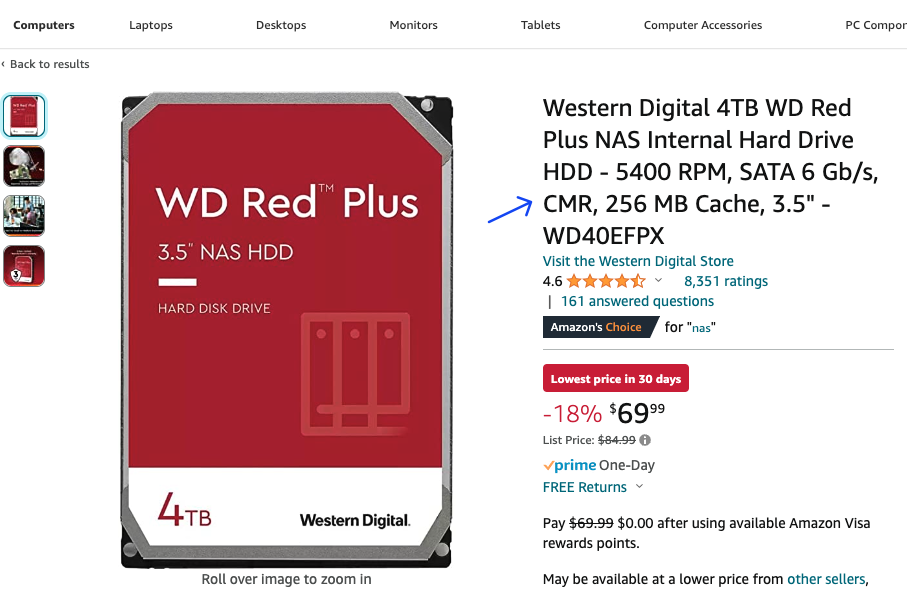
Due to their physical nature, CMR drives tend to be faster and more reliable than SMR drives, but are also more expensive (not by a whole lot though). Unless you’re really strapped for cash, it’s almost always worth it to spend the extra $10 or so to buy a CMR drive- so double check the listing before you buy!

Some recommendations for industry-standard CMR drives include:

  • WD Red Plus (Not the standard WD Red- those are SMR)
  • Seagate IronWolf Pro
  • Toshiba N300

Rotation Speed

Nearly all hard drives these days will either be 5400RPM or 7200RPM. The main tradeoffs for this decision are speed over power consumption, noise, and longevity. Additionally, 7200RPM drives take longer to spin up, which means they may be less optimal if you’re planning on only grabbing a few files from your NAS every now and then.

There are plenty of debates on the Internet about which one is better, but both are perfectly acceptable. But if you don’t care too much about a little bit of extra read/write performance, going with 5400RPM is a safe default choice.

New vs Refurbished

Buying refurbished drives can save you a lot of money- but given the limited lifespans of hard drives, it’s good to be wary of used drives that might be close to dying.

If you’re not concerned about price at all, definitely just buy a new hard drive- you’ll get several years of manufacturer warranty and can easily RMA the drive if it’s defective or fails sooner than expected.

Otherwise, you can find some really nice deals on sites like ServerPartDeals- for example, a manufacturer refurbished 18TB Exos is going for $175 at the time of writing- over $100 off its new price, and even cheaper than a new 10TB CMR drive. Note that you’ll have to do some more extensive research about the warranties of these drives, which are usually much shorter (several months to a year at most) and come with additional terms that make them much more difficult to RMA compared to new drives.

A note on shucking

You might have heard of the term “shucking” before- this refers to the act of taking apart external hard drive enclosures to get the drive inside them due to external enclosures often being sold for far cheaper than the standalone drive.

If it’s holiday season and you spot some WD EasyBooks being sold for $100 off, go for it! Shucking is easier than you might think and very commonly practiced. It’s even possible to maintain your warranty if you are extra careful about it (though this is a legal gray area and definitely not guaranteed).

Here’s a guide from iFixIt in case you don’t already have a guide handy from Reddit or another forum.

Choosing NAS Software

Now that you have some idea of the hardware that you’ll be using, it’s time to pick out NAS software!

TrueNAS

TrueNAS is fully free and open source, and my personal choice for NAS software. It requires some additional configuration compared to the other choices, but has pretty much everything you need. I’ll be demonstrating how to set up TrueNAS for the remainder of this guide.

There are a few TrueNAS offerings. I recommend “TrueNAS Community Edition” (also known as TrueNAS Scale), which is Debian-based and therefore will be very similar to the rest of your VM’s.

UnRAID

UnRAID is probably the most popular proprietary NAS software solution out there. You’re mostly paying for a more polished experience compared to the other choices, as well as some cool features like great hotswap support, Docker container management, and caching. It’s also not horribly expensive (starting at $59, or $129 if you want unlimited drives). I’d personally recommend trying out TrueNAS first, and switching over to UnRAID if you find that it has features you are willing to pay more for.

UnRAID uses its own filesystem, which is generally regarded as less robust compared to ZFS. However, it’s perfectly acceptable (and probably still slightly overkill) for our homelab use case.

Synology/Xpenology

Synology is one of the most popular NAS enclosure companies. If you are looking for a plug-and-play solution with minimal configuration, consider getting one of their enclosures. The main drawback is their price- expect to pay $400 or more for a respectable configuration with more than 2 drive bays.

If you’re down for some mild violation of terms of service, the Xpenology project allows you to self-host Synology NAS software on your own hardware. I don’t have any experience doing this, but it might be worth a try if you’re looking for the polish of a Synology device but without the cost of one.

Setting up your NAS in a VM

Generally, the recommended configuration for a NAS is to host it on its own dedicated machine, whether that be an integrated solution like Synology’s offerings or one that you build yourself.

However, if you do it properly, hosting your NAS software within a VM in your server can work just as well, and save you the cost and hassle of needing multiple physical servers. This is a great starting point, and one that lends itself to an easy upgrade if/when you decide to expand your setup.

I’ll go over how you can host your NAS in a Proxmox VM here. If you choose to run it on dedicated hardware instead, install your chosen software plus Tailscale, then skip this section and the HDD Passthrough section.

Setting up a TrueNAS VM

First, get the TrueNAS ISO image at https://www.truenas.com/download/ . Remember to download it into the var/lib/vz/template/iso folder in Proxmox via curl or wget so it shows up in the console!

Next, create a new VM in Proxmox (see chapter 2 for a refresher), using the image you downloaded. TrueNAS uses RAM as a cache, so make sure to allocate enough memory. Although some forum posts suggest a “1GB of RAM per 1TB storage rule”, the accuracy of such a rule is rather debatable. Going off of official specs, 8GB is the absolute minimum with 16GB recommended. If you have a large amount of storage or plan on using deduplication, you should allocate more RAM accordingly (perhaps 32GB for anything more than 50ish TB).

One consideration to make when allocating resources for your VM is whether you will be running media server applications like Plex or Jellyfin. If you are, you should allocate additional CPUs, memory, and storage to be able to run these applications. Otherwise, a minimal configuration like 1-2 CPU cores and 16GB boot disk storage should be enough to get you started.

For the full hardware spec details, refer to the official documentation.

HDD Passthrough

In order to work properly, your NAS software must have full control over the hard drives that will be used to create a pool— using virtual drives as you do for any other VM will not work! There are several methods for hard drive passthrough, which you are welcome to compare and choose between for your specific use case.

Method 1: HBA Card

If your chassis has enough space to hold multiple hard drives, you can adapt them to PCIe and pass through the card directly to your NAS. The PCIe card that allows you to do this is an HBA (host bus adapter).

For this method, you will need to purchase the following:

  • LSI SAS HBA card in IT Mode (example models include 9211-8i, 9300-16i). Each SAS port can drive up to 4 hard drives, so getting a 2-port/8i card is probably more than enough.
  • SAS to SATA adapter cables, if your card does not come with them

You can acquire the above used via eBay starting from around $40 total at the time of writing.

Do not buy a direct PCIe-SATA expansion card- these are not designed for the workloads our NAS will require (i.e. prolonged read/write over all disks simultaneously).

RAID cards are also not necessary, since your software can perform all of the RAID calculations without additional hardware.

Once you’ve acquired your HBA card, plugged it into any available PCIe slot, and hooked up your drives to it, you can now pass it into Proxmox! You can do this by selecting your VM, going to the Hardware tab, then clicking Add -> PCI Device and selecting your HBA card from the list.
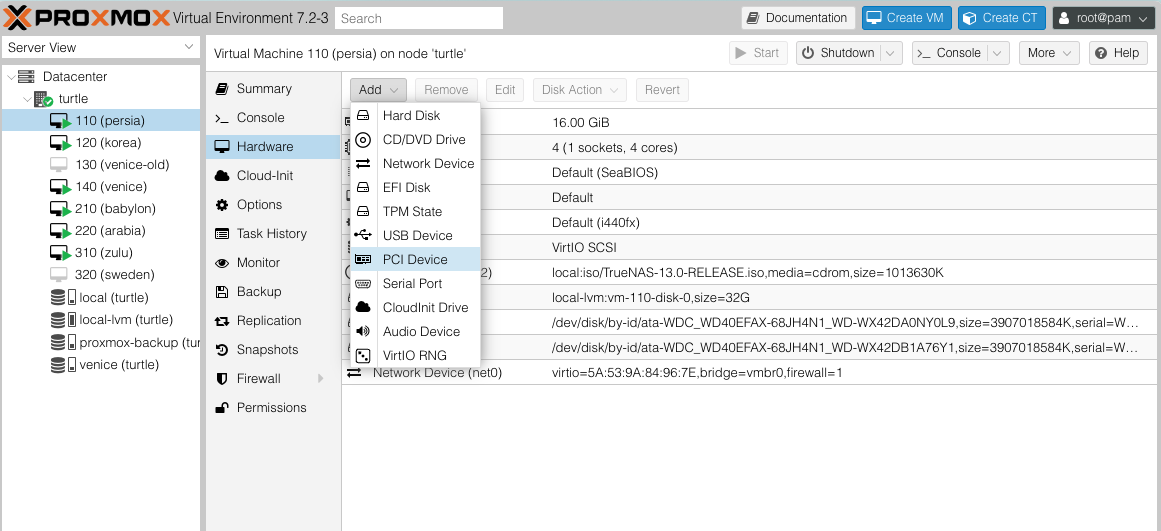
Method 2: External Enclosure

If your server can’t hold enough drives in it (or you’re using something like a Raspberry Pi), getting an external enclosure might be your best bet. Companies like U-NAS offer hard drive enclosures that you can plug into your server.

Passing an enclosure into your VM is the same process as passing through an HBA card, except that the enclosure may be connected over USB versus PCI. You can click on Add -> USB Device and select the correct option instead.

Method 3: Proxmox Passthrough

If you really can’t afford a HBA card or external enclosure, you can connect your hard drives as you normally would (onto your motherboard’s SATA ports) and pass them through individually. This method is not recommended because it adds an additional layer between your NAS and hard drives, which makes data loss more likely to occur.

If you understand the implications and would still like to proceed, open up your Proxmox shell and do the following:

  1. Run lsblk -o MODEL,SERIAL. This should output a list of the model and serial numbers for all detected drives.
  • Run ls /dev/disk/by-id and cross-reference the lsblk output from above to identify the disks we want to pass through. For example, the serial number WD-WX42AD0WV0L0 could correspond to the disk ID ata-WDC_WD40EFAX-68JH4N1_WD-WX42AD0WV0L0.
  • Run qm set <VM_ID> -scsi<N> /dev/disk/by-id/<DISK_ID> where VM_ID is the ID of the TrueNAS VM, N is an integer that hasn’t been assigned a disk yet (e.g. if scsi1 exists, use -scsi2 to add a new disk), and DISK_ID is taken from the output of ls /dev/disk/by-id.
  • Edit the file /etc/pve/qemu-server/<ID>.conf to add serial=<SERIAL_NUMBER> to the end of each of the new scsi<N> lines.
  • Repeat the above steps for any other drives you would like to add.

Set up a Pool

Now that your hard drives are detectable by TrueNAS, it’s time to set up your pool!

First, let’s make sure we can access the TrueNAS web UI. Open the Proxmox console for the VM and you should be greeted by the following prompt:
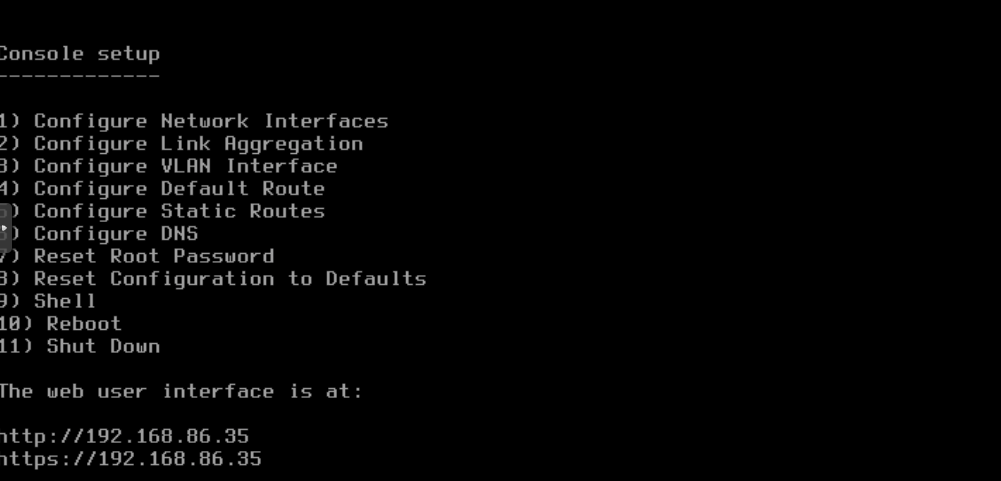
The web interface IP listed is probably your LAN address. Let’s install Tailscale to make sure you can access it anywhere- you can do this with the same method as any of the other VM’s, or use this official guide for more in-depth customization.

You can proceed to set up your DNS records and reverse proxy for more human-friendly access if you would like- but remember that this console should only be accessible via your internal network.

Once you can access the web console, navigate to Storage -> Pools -> Add. You should be greeted with the following screen:
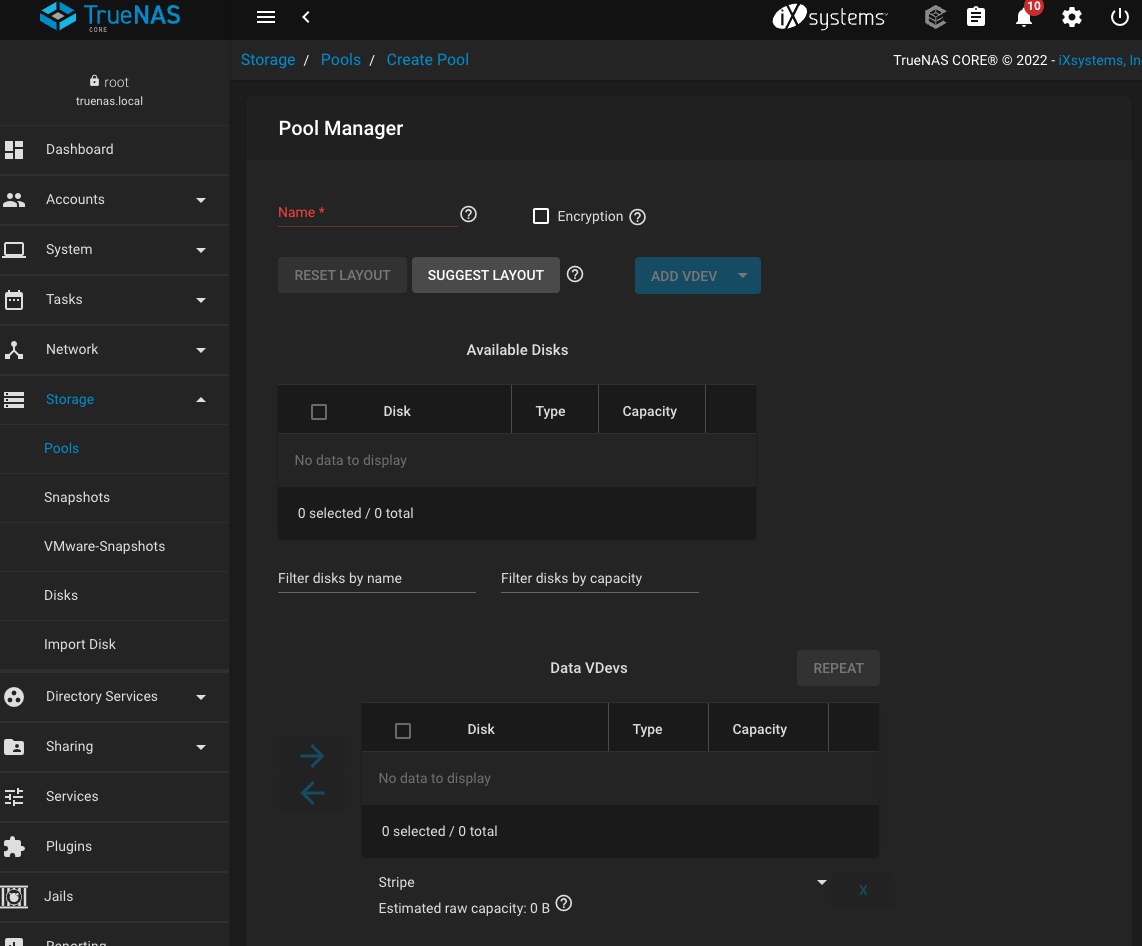
There’s a lot of terminology here (what’s a VDev?? How is this different from pools???). You should consult the FreeNAS Guide for a comprehensive introduction if you would like. Here’s the summary:

  • A VDev is a “virtual device”, or a collection of physical drives organized via software RAID. Once a VDev is created, you cannot add or remove drives from it!
  • A pool (or ZPool) is a collection of VDevs. This is what will be available when your other VM’s/devices connect to the NAS to access data.
  • If any one vdev fails in a pool, then the entire pool fails. So make sure you configure your vdevs in a robust manner, using ZFS RAID configurations, such that you can handle drive failure.

If you’re unsure of what to do here, just make one VDev with all of your available drives using the suggested layout (mirror for 2 drives, RAID-Z1/Z2 for 3+ drives).

Once the pool has been created, TrueNAS will automatically prepare your drives and make the pool available! You should be able to see this pool within your TrueNAS instance at the location mnt/POOLNAME/.

Sharing

There are a variety of ways you can access your new pool from other devices. You can also restrict certain users or devices to a subfolder in your pool (known as a dataset).

Permissions

First, let’s set up some basic permissions to allow yourself and others to access the pool.

If you want to restrict a user to a subfolder, let’s first create a new dataset. You can do this from the terminal (click on Shell from the TrueNAS sidebar):

  • Make sure the folder exists: mkdir -p /mnt/POOLNAME/FOLDERNAME
  • Create the dataset: zfs create POOLNAME/FOLDERNAME

Then, let’s create the user from the Accounts -> Users screen. You can assign whatever username and password you want- this is what the user will type in when attempting to connect. There should be no need to adjust any other settings besides reassigning the home directory to your dataset if needed.

NFS (Linux)

To connect from a Linux device (or another one of your VM’s), you will need to set up a NFS share.

Go to Sharing -> Unix Shares (NFS), and select the dataset you wish to share. If you want to share the entire pool, additionally go to the Advanced Options and configure the Access section as follows. This will ensure you will connect as the root user and be able to read/write.
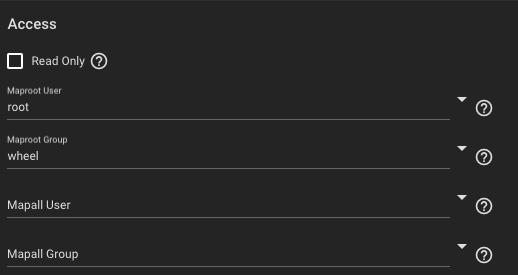
You can also configure the authorized networks (also in the advanced settings) to restrict all connections to come from your Tailscale subnet if desired (probably 100.64.0.0/10).

Now, on your Linux machine, mount your pool by doing the following:

  1. Install the NFS package: sudo apt install nfs-common
  2. Create a local mount point: sudo mkdir -p /mnt/DIRECTORYNAMEHERE
  3. Run the mount command: sudo mount -t nfs TAILSCALE_IP_OF_NAS:/mnt/POOLNAME/FOLDERNAME /mnt/DIRECTORYNAMEHERE
  4. Allow your regular user access to the mounted folder: sudo chown USERNAME /mnt/DIRECTORYNAMEHERE
  5. If you want the mount to persist on reboot, add a line to /etc/fstab: TAILSCALE_IP_OF_NAS:/mnt/POOLNAME/FOLDERNAME /mnt/DIRECTORYNAMEHERE nfs defaults 0 0

SMB (Mac and Windows)

To connect from a Mac or Windows machine, we can use the SMB protocol for more convenient access.

This should work out of the box on TrueNAS: go to Sharing -> Windows Shares (SMB), then follow the steps to add a new share with the default parameters.

On your Windows machine, open Windows Explorer. In the file name bar, type in //TAILSCALE_IP_OF_NAS/POOLNAME/FOLDERNAME and you should be prompted to log in. You should use the credentials of the user you made in TrueNAS, and not your Windows login. Once the connection is successful, you can bookmark the location to save your NAS folder to quick access.

On your Mac machine, open Finder. Then, navigate to Go -> Connect to Server… For the server address, type in smb://TAILSCALE_IP_OF_NAS/POOLNAME/FOLDERNAME. Use the login you created in TrueNAS. Once you’re connected, your NAS should show up as a network drive on the Finder sidebar.

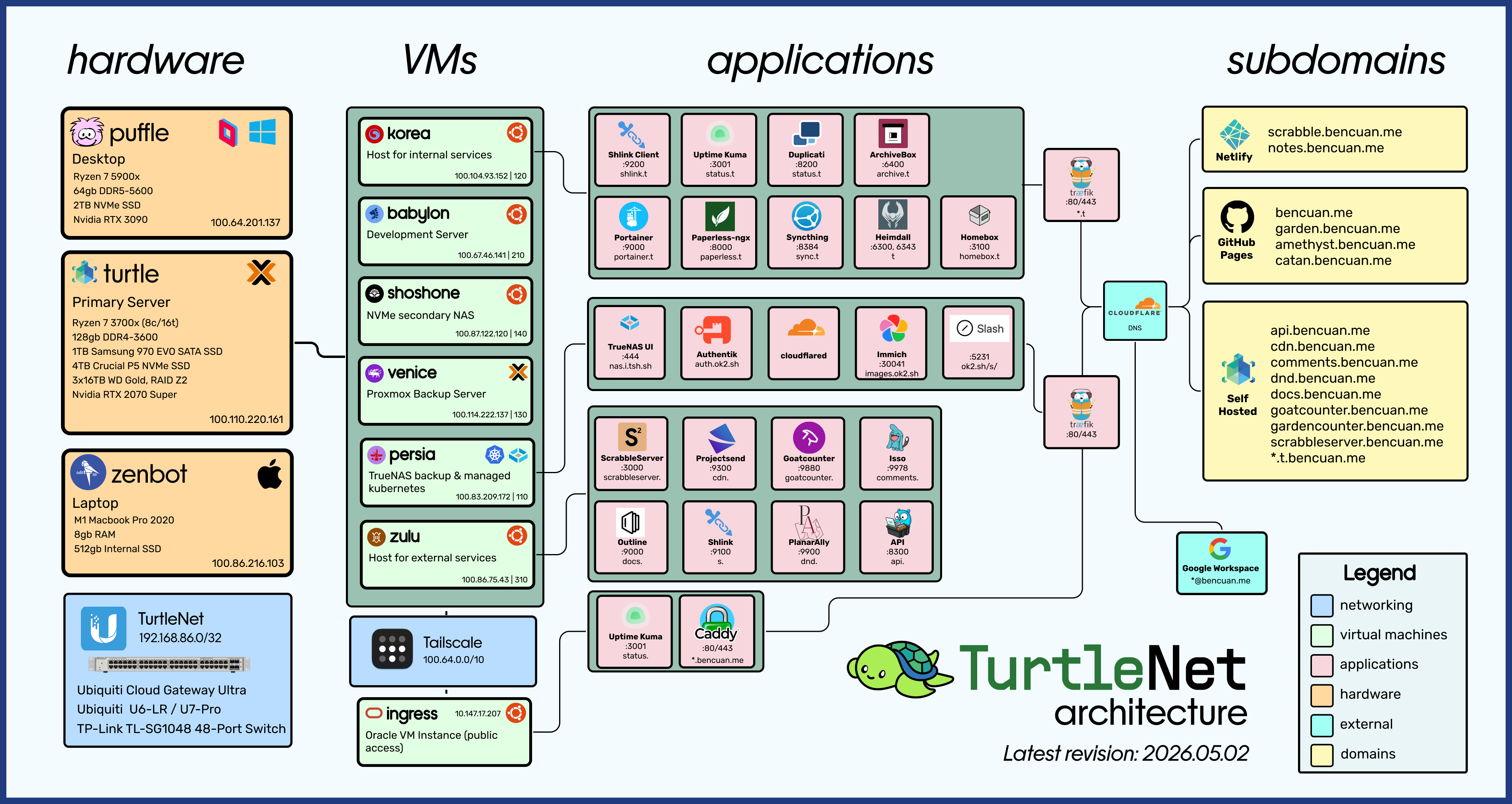
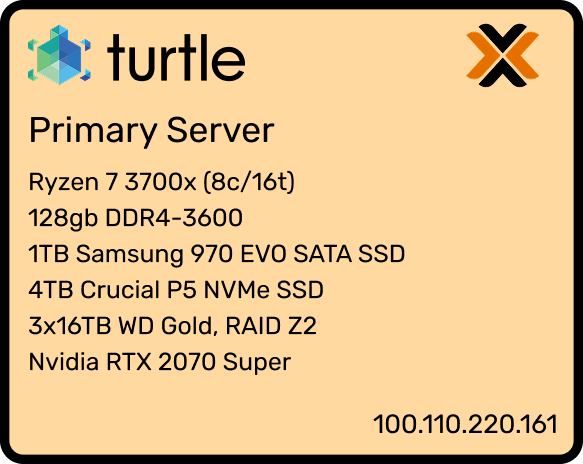
TurtleNet 7: Backups

Introduction

You should always keep backups of your important data in the case of catastrophic hardware loss or corruption! Think about this like a good insurance plan: when accidents inevitably happen, you want to be able to recover what you lost with as little hassle as possible.

The 3-2-1 Rule

There’s a well-known rule of thumb that sysadmins usually try to follow:

Source: MSP360

(Source: MSP360)

As it stands now, let’s evaluate how well our homelab stacks up to this rule:

  • 3 copies: This is probably somewhat satisfied if you have a NAS configured with anything more than RAID 0. However, there is only 1 copy of your VM boot data!
  • 2 locations: This needs some work.
  • 1 off-site location: Hmm… So, not great. In this section, we’ll explore some ways we can approach our ideal backup solution, and compare solutions to see which ones will work for your use case.

Git Backups

For small, important, non-sensitive files like configurations, documentation, and custom scripts, using a standard source control solution like Git is a great option to easily back things up to the cloud.

As an example, I keep two monolithic GitHub repositories: one for my TurtleNet configs, and one for my Obsidian vault (basically anything I have ever written in Markdown). Keeping configs on GitHub is especially convenient, since it can be easily pulled onto all VM’s.

The main drawbacks of using GitHub or another cloud provider for Git are twofold:

  1. Storage limitations: Git is not intended for use with large files (or a large quantity of files). Although Git LFM exists, providers like GitHub often charge you a decent amount for it. Additionally, storing binaries on Git is not ideal.
  2. Security: You should never store secrets and passwords on any Git repo, even if it’s private! This means that you have to be careful with what data you plan on storing in a repo.

Proxmox Backup Server

Proxmox offers a first-party backup server that can be installed via ISO like any other operating system. PBS takes periodic snapshots of your VM’s and stores them to disk.

The most robust implementation of PBS would be to install it alongside an off-site NAS, such that your VM’s get backed up on a wholly redundant machine.

Alternatively, if you only have your one Proxmox box, you can install it as a VM. But make sure to skip backing up its own VM or else it may freeze up your system!

Here are the official instructions for getting started with PBS.. The nice thing about PBS is that it has direct integration with the main Proxmox web interface, so you can configure your VM backups without leaving Proxmox itself. You can find it in your console under your main datacenter -> Backup…

alt text

Software Solutions

Syncthing

Syncthing is a peer-to-peer file sync application that allows you to share folders between multiple devices. I personally use Syncthing to ensure all my documents are available and up to date on my laptop, phone, and NAS.

Setting up Syncthing on a device with a GUI is very easy- simply download the latest version here and follow the setup instructions on each device!

Setting up Syncthing on a VM can be done in the same way as any Docker service. Here’s a sample docker-compose.yml:

version: '3'

services:
  syncthing:
    image: linuxserver/syncthing
    container_name: syncthing
    environment:
      - PUID=1000
      - PGID=1000
    volumes:
      # - /syncthing_share_folder1:/data1
      # - /syncthing_share_folder2:/data2
    ports:
      - 8384:8384
      - 22000:22000
      - 21027:21027/udp
    restart: unless-stopped
    networks:
      - proxy
    labels:
      - 'traefik.enable=true'
      ## HTTP Routers
      - 'traefik.http.routers.syncthing-rtr.entrypoints=https'
      - 'traefik.http.routers.syncthing-rtr.rule=Host(`sync.t.bencuan.me`)'
      - 'traefik.http.routers.syncthing-rtr.tls=true'
      - 'traefik.http.routers.syncthing-rtr.service=syncthing-svc'
      - 'traefik.http.services.syncthing-svc.loadbalancer.server.port=8384'

networks:
  proxy:
    external: true

In order to get it to work properly, you’ll need to add the folders you want to share as volumes. These can be named anything on both the host and container ends- just remember to add a folder using its location on the container and not the host.

The web UI is accessible via server_ip:8384.

Duplicati

Duplicati is an open source, self-hosted backup service that can be configured to back up files to another device, your NAS, or even Google Drive.

Here’s a sample docker-compose:

version: '3'
services:
  duplicati:
    image: lscr.io/linuxserver/duplicati:latest
    container_name: duplicati
    environment:
      - PUID=1000
      - PGID=1000
      - TZ=America/Los_Angeles
      - CLI_ARGS= #optional
    volumes:
      - ./config:/config
      # More volumes here
    ports:
      - 8200:8200
    restart: unless-stopped
    networks:
      - proxy
    labels:
      - 'traefik.enable=true'
      - 'traefik.http.routers.duplicati.entrypoints=http'
      - 'traefik.http.routers.duplicati.rule=Host(`duplicati.t.bencuan.me`)'
      - 'traefik.http.middlewares.duplicati-https-redirect.redirectscheme.scheme=https'
      - 'traefik.http.routers.duplicati.middlewares=duplicati-https-redirect'
      - 'traefik.http.routers.duplicati-secure.entrypoints=https'
      - 'traefik.http.routers.duplicati-secure.rule=Host(`duplicati.t.bencuan.me`)'
      - 'traefik.http.routers.duplicati-secure.tls=true'
      - 'traefik.http.routers.duplicati-secure.service=duplicati'
      - 'traefik.http.services.duplicati.loadbalancer.server.port=8200'
      - 'traefik.docker.network=proxy'

networks:
  proxy:
    external: true

Like Syncthing, you’ll need to add external folders from the host as volumes (remember, host_folder:container_folder). These can be named whatever you want.

rsync/rclone

If you prefer to keep it CLI-only, rsync and rclone are simple and work great. I don’t personally use them, but I’m sure you can find resources online like this one for your use case.

Cloud Storage Providers

Unless you physically own multiple servers in multiple locations, cloud storage providers are probably the most convenient way to get off-premise backups of your data. There are plenty of providers, so choose the one that works best for you and your wallet! Here’s some information about some alternatives I considered:

Google Drive

Google Drive actually has extremely reasonable pricing options which start around $5/TB/month. Plus, it’s fairly straightforward to send your backups to your Drive via Duplicati or another software solution.

However, there are some drawbacks to consider:

  • Google Drive has a hidden 750GB/day upload limit, so an initial backup could take a long time to fully complete.
  • Upload/download speeds can be somewhat inconsistent- Drive is generally not intended for such heavy usage by a single user.
  • Say what you want about Google, I personally wouldn’t trust them with my sensitive data— but as long as everything’s sufficiently encrypted, it shouldn’t be too much of a problem.

rsync.net

rsync.net offers cost-effective, simple access to cloud storage. At $15/TB/month with no usage costs, it’s definitely pricier than Google Drive but is faster, more secure, and more convenient (you can mount your network drive in the same way you can mount any other NAS).

They also offer a significant education discount upon request, so if you’re a student this could be a good option.

AWS Glacier

At around $1/TB/month, AWS Glacier Deep Archive is probably the cheapest cloud storage around— that is, until you need to retrieve your data.

According to the pricing chart, transferring data out of AWS from us-east-1 costs $0.09 per GB- which is a staggering $90/TB! But if you just need to back up a few TB of data and are willing to pay a (pretty reasonable) couple hundred bucks to recover your data in an absolute-emergency scenario, this could be a good solution to have extremely cheap off-premise storage.

Friends and Family

If you know someone with a NAS, consider asking them to host your backups! You can even build and gift them a NAS in order to gain access to another server offsite. Make sure that you trust them with your personal data, though, since they’ll have full hardware access to the drives.


TurtleNet: End of Season 2

Hi there! Hope you’re doing well :)

A lot has changed over the last few years since I wrote the original TurtleNet series back in 2023. Especially with the rise of local AI and self-hosted agents like OpenClaw, interest in homelabs and servers has never been this high in probably all of history. I reckon it was about time to update TurtleNet to accurately represent the state of the homelabbing world in 2026.

I hope this series was even a fraction as fun and helpful for you as it was for me.

Now that I maintain servers as a full-time job, it’s pretty tough for me to find the time and energy outside of work to continue building out my personal homelab. As such, I don’t anticipate any major updates to TurtleNet in the coming future (assuming things continue running with minimal effort as they have for the past year or so).

I’d like to write about real production servers at some point, now that I have experience running them at scale! Since there are already plenty of great resources about this topic online, I still need to let this thought stew a bit so I can find the missing pieces I’m most able to contribute to meaningfully. This will likely look like a more formal extension of my current ML Systems Engineering Syllabus.

If you had a good time, learned something new, found any bugs, or otherwise want to chat about something, my inbox is open.


So long for now, and thanks for all the fish,

bencuan


Appendix

A. Attributions

Thank you to Eric Qian for collaborations on TurtleNet over years, and for providing ongoing colocation services.

Thank you to Kevin the Doge for protecting TurtleNet with his life. Many potential system threats have been vanquished under the ferocity of his watchful eye.

Thank you to Kognise & other contributors to Putting the “You” in CPU, which has been a major inspiration for me throughout the years content-wise, as well as a significant design inspiration for the current iteration of the website.

Thank you to Amtrak for providing the comfy seat and snowy mountain views which enabled me to write 10,000+ of the words in this series.

B. V2 Changelog

For the most part, V2 is just a more polished and up-to-date version of V1. I didn’t add that much new content. Every time I changed something, I noted it down in the list below.

  • add this Appendix page
  • add Behind the Scenes
  • update introduction and various pages to the post-LLM world
  • new architecture diagram and architecture cards
  • update end-of-season message
  • deprecate zerotier, replace w/ tailscale
  • recommend truenas scale instead of truenas core
  • add section about cloudflared
  • better prose overall, i’m a better writer than i was a few years ago (at least i hope)
  • update application list + description
  • update networking information to reflect presence of physical hardware
  • github actions instead of netlify
  • update pc part picking info (RIP part prices)
  • update opengraph covers
  • add a “connecting to the internet” section that describes ISPs and physical hardware before getting to tailscale
  • archive the ocf kubernetes lab into garden.bencuan.me
  • move domain config info from tailscale to public networking section
  • add a note about proxmox backup server
  • add ‘a short list of things i don’t want to self host’ to the appendix

C. Colophon

I designed TurtleNet in Figma. You can view the design file here.

I’ve attached the color and typography cards below. Frama and Supply Sans are designed by Pangram Pangram and licensed for personal use. Atkinson Hyperlegible and Fira Code are available under the SIL Open Font License.

D. A short list of things I don’t want to self host

Email servers

Self-hosting email is possible, not that hard in theory, and great from a privacy/ownership perspective. I know people who have done it for themselves. However, I would not recommend it to nearly anyone. If you’ve heeded all the warnings and still have the urge to do it, I’m rooting for you— but at a safe distance! 🫡

conventional wisdom

A few discussions (both pro and against self-hosting email) from around the internet from people who have gone through this before.

i need ~100% uptime for email

From an industry-standard perspective, TurtleNet has very low reliability (~99% uptime). This is by design: nobody’s lives are on the line, nothing I host really needs to be around 100% of the time, and I get to reboot/rebuild the server whenever I feel like it.

Although modern email services have retry mechanisms and other sorts of things to almost-guarantee every message gets sent eventually, this is much more about peace of mind for me. If I self-hosted my own email, I’d constantly question whether or not a message I sent actually got delivered, or whether I missed an important email.

the spam problem

Spam goes both ways when self-hosting email:

  • Incoming spam is especially bad unless you take the care to set up and tune self-hosted spam filters. Gmail and other commercial mail providers have over a decade of experience tuning their filters; I certainly don’t.
  • Since your email will originate from a relatively unknown source, they’ll inevitably end up in your recipients’ spam folders by default. Be prepared to go down the DMARC/DKIM/SPF rabbit hole at the very minimum.

Static sites

It would be a fairly trivial one-liner for me to host my static sites (like this website, or my homepage) from my ingress server. However, it’s not worth my time because other peoples’ static site hosting services are free and also better in almost every way:

  • Faster loading times for everyone!
  • They have CDNs, web caches, and other neat tricks so people who live on the other side of the world don’t need to round-trip to California every time they load the page.
  • Better development experience- PR/deployment previews, CI, pre/post-build hooks, asset optimization, etc.
  • Much, much better uptime - even GitHub with all of its problems is more robust than my homelab could ever be…

Vercel, GitHub Pages, etc. are often more than good enough to support all of these needs with minimal configuration.

If I ever need to turn this site or any other site into a responsive webapp, then I’ll migrate it over— but until then, I’m happy delegating this to someone else.

Git and backups

Traditionally, the 3-2-1 backup rule (3 copies of your data on at least 2 different devices with 1 copy offsite) is a good heuristic for ensuring data safety.

Practically, this is very difficult and expensive to achieve on a fully self-hosted system. Duplicating my data would necessitate building and hosting a second server off-site, which would double my costs. I’m perfectly happy hosting my most critical files on GitHub, paying Apple $0.99/month for iCloud, etc. for more reliable backup and version control at a significantly lower price.


TurtleNet: Behind the Scenes

Pre-history

My experience with homelabs, like so many others, began with Minecraft.

In the beginning of high school, my friends and I really wanted to make a server of our own. We’d been using Aternos through middle school, but it was fairly limited and unreliable, so I decided to turn my PC into one. It looked something like this:

Unfortunately, my desktop was really underpowered. It was hobbling along on a $25 Intel Celeron CPU and crashed fairly often. “You should try linux!” seemed to be the prevailing advice on the various forums online. So I ended up installing Elementary OS and falling into a very, very deep rabbit hole. Little did I know at the time, but this would eventually turn into my career today!

Throughout the rest of high school, I played around with my desktop setup a lot. It doubled as a server on-and-off, whenever there was a game-server-related need for it. Most of my earlier days messing with computer systems involved dotfiles and otherwise making my desktop interface prettier/more functional; the server aspect of it was mostly an afterthought.

My very first real “server” ran on an Intel Celeron G1840 and an NVIDIA GTX 650Ti graphics card, with 8GB of RAM and a 256GB Samsung SSD. It was kind of loud (and also in my bedroom), so it only ran when needed and I turned it off at night. If I was away and needed to mess with it, I triggered a wake-on-LAN signal routed through some clever and/or cursed port-forwarding (which only worked 50% of the time), and ran a Windows Remote Desktop connection into it.

Season One

After I joined the the Open Computing Facility and had the opportunity to mess with real rack-mount servers hosting real services that people actually used, I felt inspired to build a more respectable self-hosting setup of my own.

At the time I had just built a new computer (with a Ryxen 7 3700x, 64GB of RAM and a GTX 1080)— but realized that:

  1. I was rarely around to use it.
  2. I often had a need for the compute power on-the-go (for school projects, extra cloud storage, etc.)

I made the decision to retire my computer as a desktop, wiped the drive, and installed Proxmox.

As of 2023, a ~year after starting the conversion, this is what my server architecture looked like:

After notes.bencuan.me started taking off at the end of 2022 I realized that people would also really appreciate hearing about TurtleNet! So I decided to write some notes about it and published it on Hashnode (this version is now available as TurtleNet V1). TurtleNet was the second major piece of writing I’ve ever created; To this day I still run into folks who tell me how much it’s helped them create their own homelabs 🥺

aside: why is it called TurtleNet?

  1. I like turtles.
  2. I now name all of my physical machines after animals.
  3. I made an extremely cringe webtoon as an unreasonably high-effort method of realizing that turtles have shells, and so does your computer.

Season Two

After I finished writing the TurtleNet series Eric and I joined forces to build a single, more powerful, colocated server to share compute resources. He had a lot of complimentary homelabbing knowledge and opinions to mine, and filled in a lot of the gaps for some of the more lacking aspects like networking and NAS implementations. This iteration eventually solidified into TurtleNet Season Two, with an architecture that is represented roughly by this updated diagram:

TurtleNet in its current form is a properly respectable homelab system: now with double the RAM, over 6x the raw storage, and an enterprise-grade networking system. We also migrated the gaming server to its own dedicated PC to spec it out more appropriately for the use case (i.e. emphasizing CPU/GPU resources over memory/disk).

The present iteration of the series focuses on the lessons we learned while building this new system and a few ways the standards have changed over the last three years since I wrote the original.

Future Directions

Now that I maintain servers as a full-time job, it’s pretty tough for me to find the time and energy outside of work to continue building out my personal homelab. As such, I don’t anticipate any major updates to TurtleNet in the coming future (assuming things continue running with minimal effort as they have for the past year or so).

I’d like to write about real production servers at some point, now that I have experience running them at scale! Since there are already plenty of great resources about this topic online, I still need to let this thought stew a bit so I can find the missing pieces I’m most able to contribute to meaningfully. This will likely look like a more formal extension of my current ML Systems Engineering Syllabus.